Microsoft Windows 10 Home

Installation guide Microsoft Windows 10 Home

DOWNLOAD

Microsoft Windows 10 Home

Download the desired version with the following download link.

(If your device has more than 8 Gb of RAM, and 64-bit version)

SYSTEM REQUIREMENTS

Read this very carefully

These are the minimum system requirements for installing Microsoft Windows 10 on a PC. If your device does not meet these requirements, you may not be able to install Microsoft Windows 10.

Processor 1 gigahertz (GHz) or faster with 2 or more cores on a compatible 64-bit processor or System on a Chip (SoC).
RAM 4 gigabytes (GB).
Storage 64 GB or larger storage device Note: See below under “More information on storage space to keep Microsoft Windows 10 up-to-date” for more details.
Graphics card Compatible with DirectX 12 or later with WDDM 2.0 driver.
Display High definition (720p) display that is greater than 9” diagonally, 8 bits per color channel.

LICENCE AND ACTIVATION

Once you have the license in your possession, follow these steps to activate your Windows Operating System.

Product key activation:

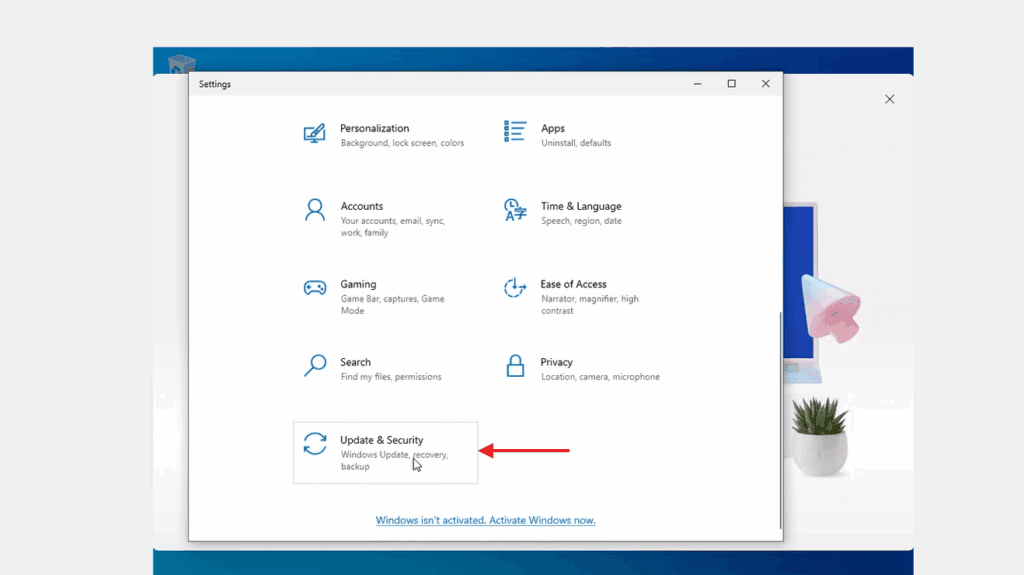
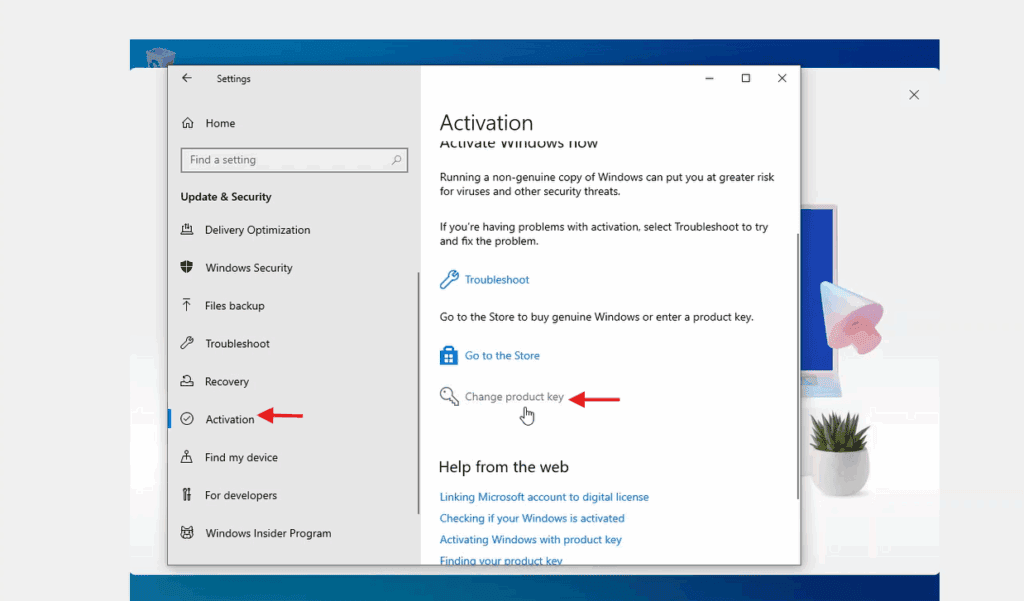
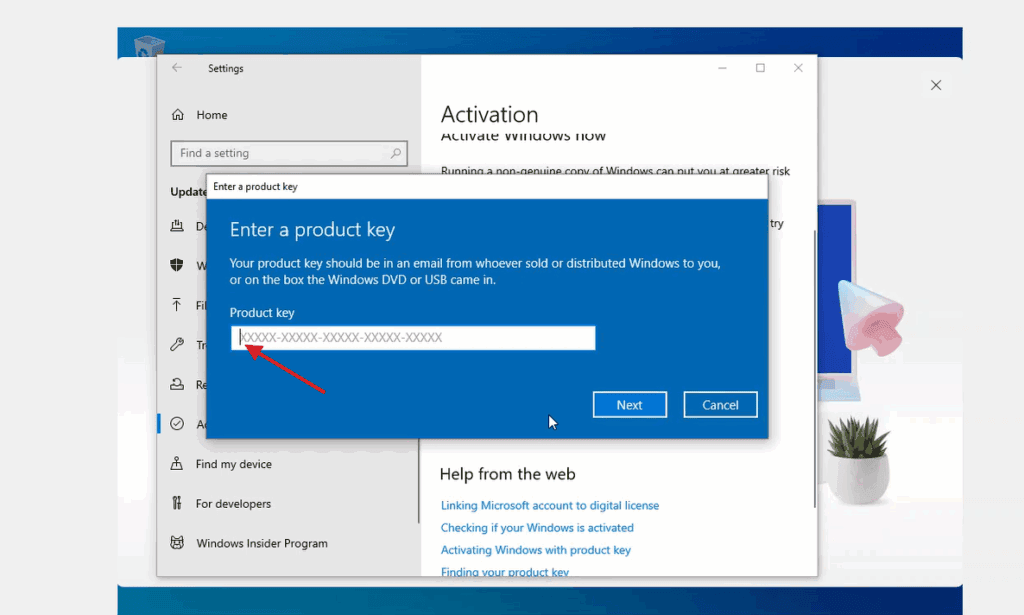
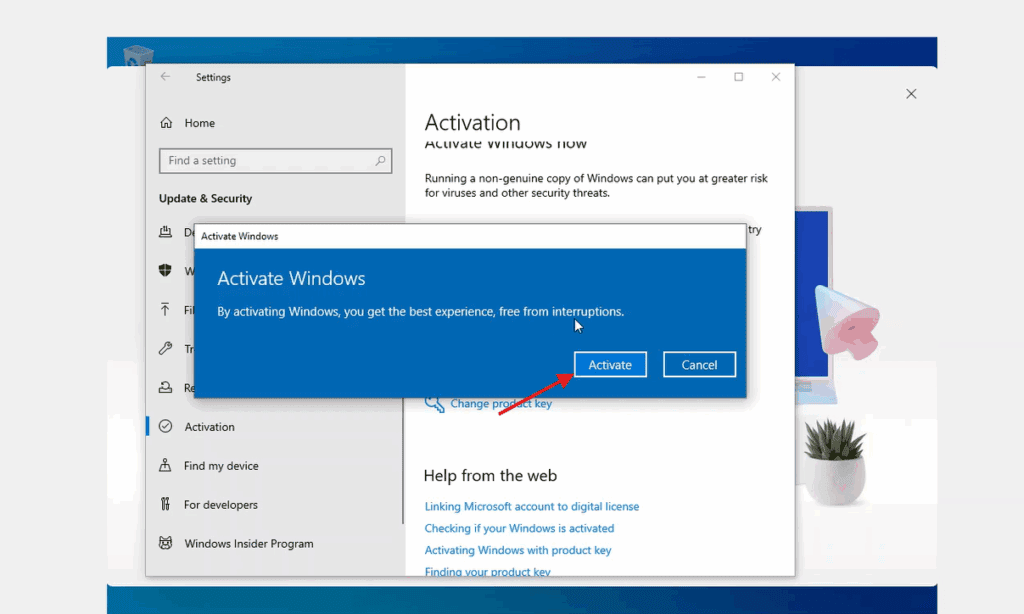
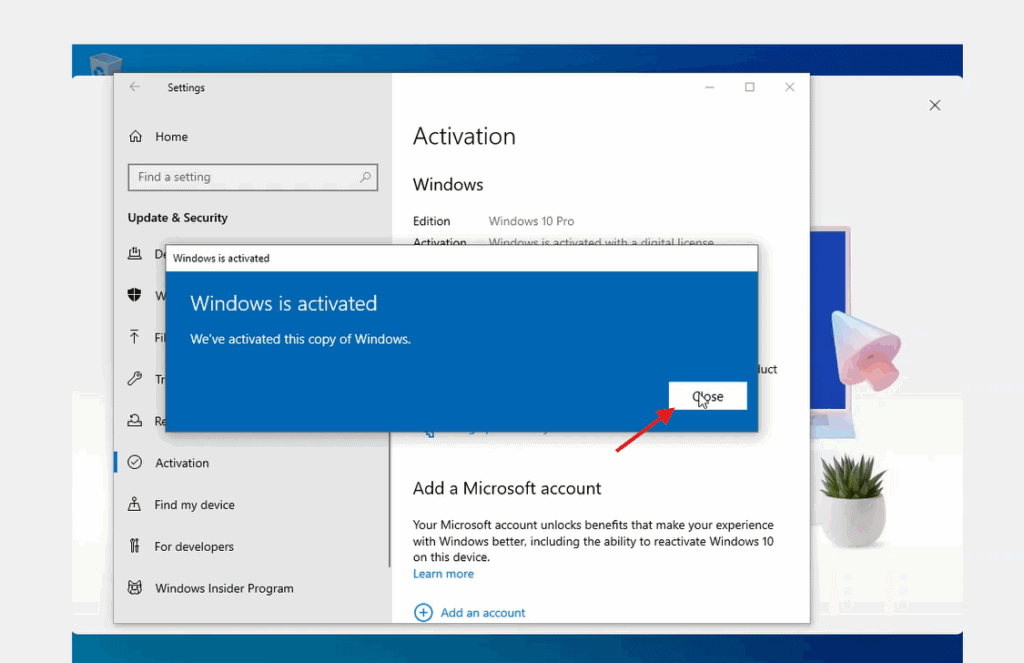
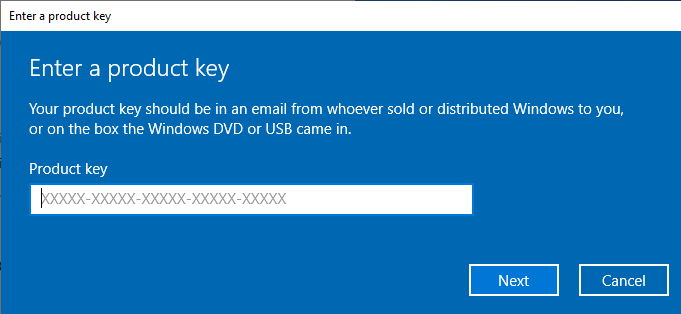
Go to Update & Security →  ActivationChange product key → Activate.

In this way, your operating system is properly activated
CLEAN INSTALLATION

IMPORTANT NOTE:

This installation guide is intended for users who wish to do a clean install of Windows 10 Pro on a new or existing hard drive. It requires intermediate or advanced technical knowledgeIf you have no previous experience with clean installations of operating systems, it is recommended to perform the process with an expert to avoid errors or data loss.


Prerequisites

  • A blank USB drive with at least 8 GB of storage.
  • A computer with Windows 10 or Windows 11 installed (to create the installer).
  • Back up all your files before starting, as this process will format your disk and delete all existing data.
  • Save your important files, a clean installation will format the hard drive and erase all previous information.
  • Make sure you have access to your passwords, files, and licenses before proceeding.

Step 1: Download the media creation tool

Download the official Microsoft program that allows you to create a USB installer.

  1. Download the Microsoft Windows 10 installer by clicking the “Download” button at the top of this manual.
  2. Run the downloaded file.

Note: When you start the tool, you will see three initial setup windows (accepting changes, accepting terms, choosing language and Windows version). Follow the on-screen instructions.

Step 2: Create the ISO file or install directly to a USB drive

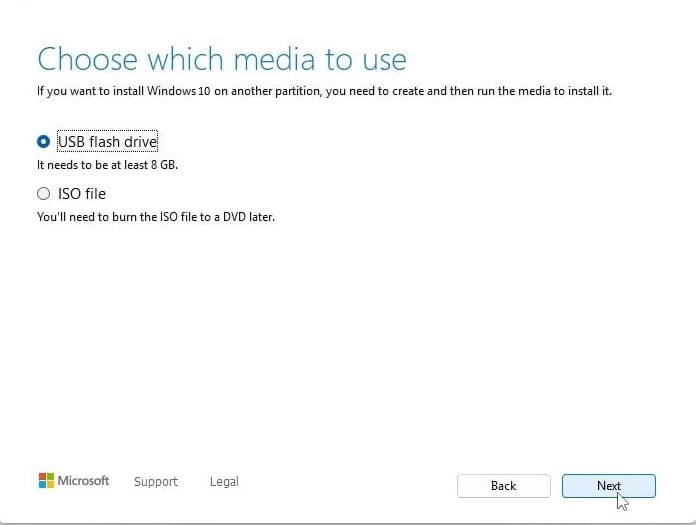
“Choose which media to use” you will see two options:

USB flash drive

  • Insert the USB drive into your PC and automatically download Windows 10 onto it.
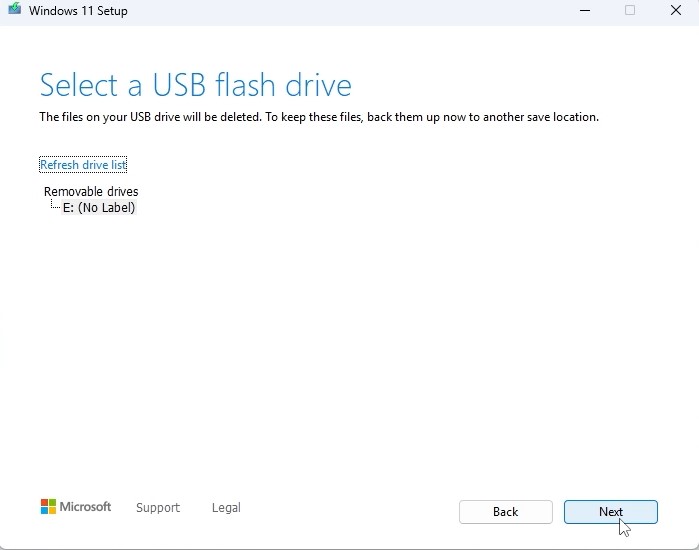
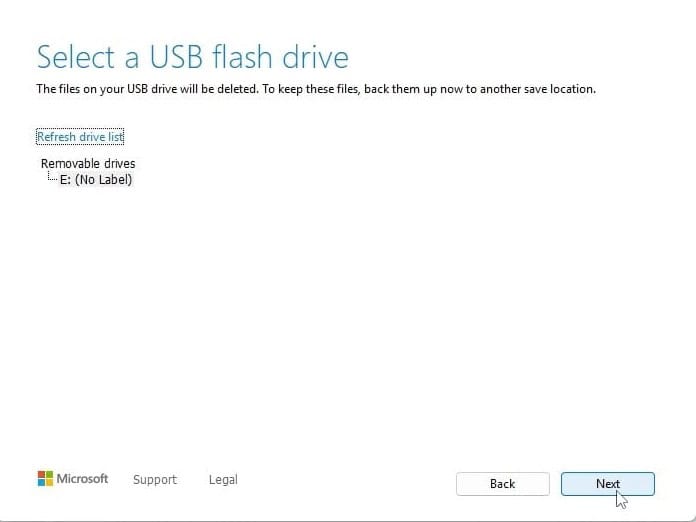
  • Select the correct drive from the list; the tool will download and install Windows 10 onto your USB.
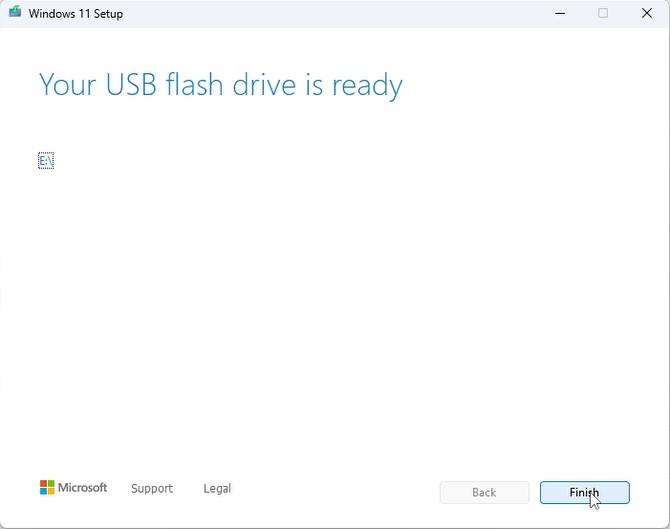
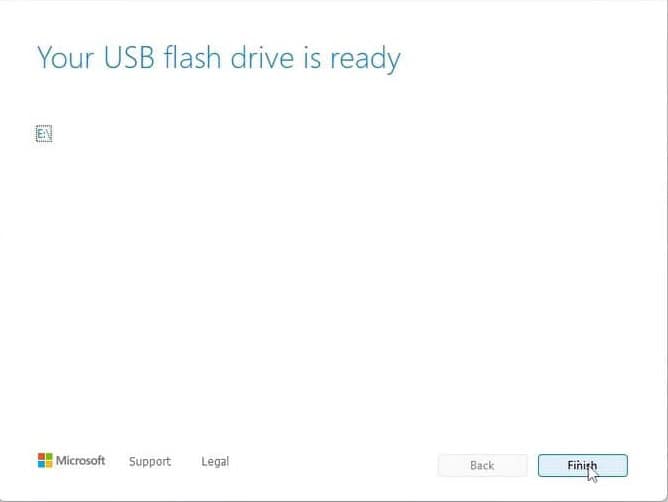
  • Once the process is complete, you will see this screen:

Step 3: Start the Windows 10 installation

  1. With the installation USB ready, connect the installation USB to the computer.
  2. Turn on the computer and access the BIOS or boot menu.
  3. Set the boot order so the USB is the first boot option.
  4. Save the changes and restart the computer.

Note: Check your device manual for how to enter the boot menu (varies by manufacturer: F2, F12, ESC, DEL, etc.).

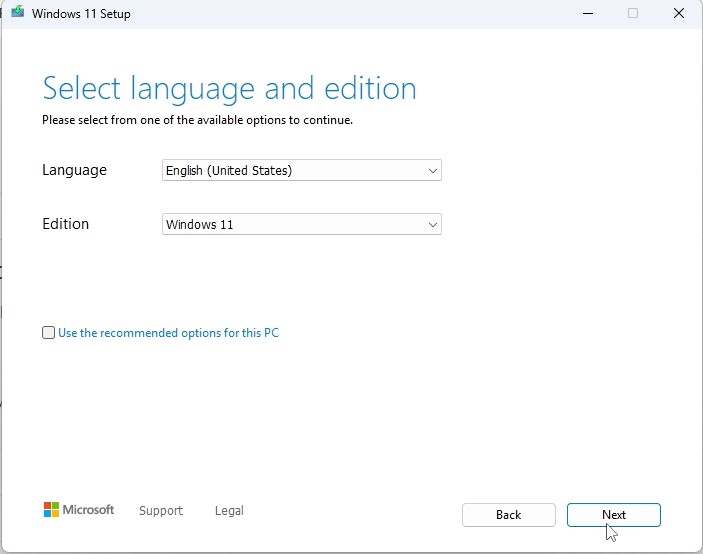
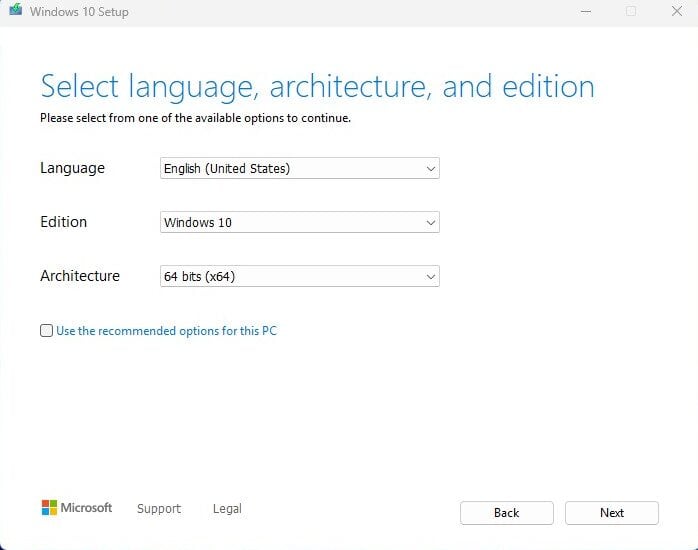
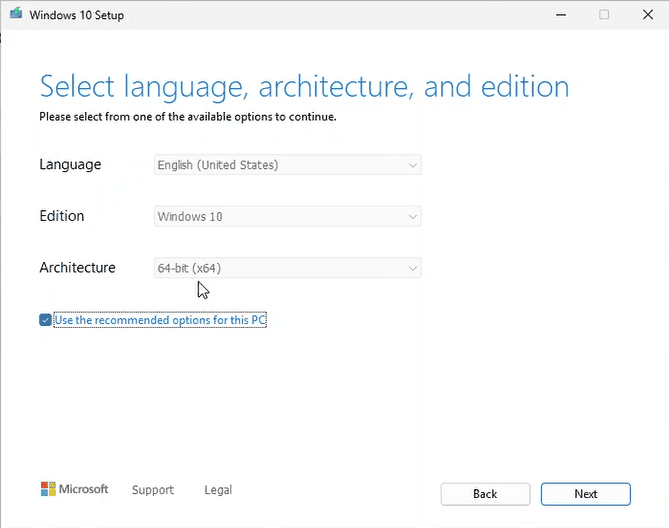
“Select language and edition”

Choose the operating system language and 64-bit architecture.

Step 4: Installation process

  • When booting from the USB, the Windows 10 installation assistant will appear.
  • Follow the on-screen steps:
    • Choose your language and keyboard layout.
    • Click “Install now”.
    • When prompted for a product key, you can enter your Windows 10 license key or click “I don’t have a product key” (you can activate it later).
  • Is this the correct country or region? – Complete the region setup.
  • Let’s name your device – You can skip this step.
  • Unlock your Microsoft experience – Sign in with your Microsoft account (email and password) to access services like OneDrive, Microsoft Store, and sync your settings. If you don^t have a Microsoft account, you will need to create one in order to proceed.

How to create a Microsoft account:

Enter:

  • Username
  • Password
  • First and last name
  • Country and date of birth
  • Secondary recovery email for the account
  • Finally, solve the Windows security CAPTCHA

Create a security PIN:

Create a personal identification number (PIN) that you will use to log in quickly to your device; it should be easy to remember.

Skip Microsoft account creation

If you don’t have a Microsoft account and don’t want to create one, or if you want to skip this step, you can do the following:

This will skip creating the account and prompt you to create a local login account.

 
Press the Offline account option


Once you select this option, a window will appear asking for the following information:

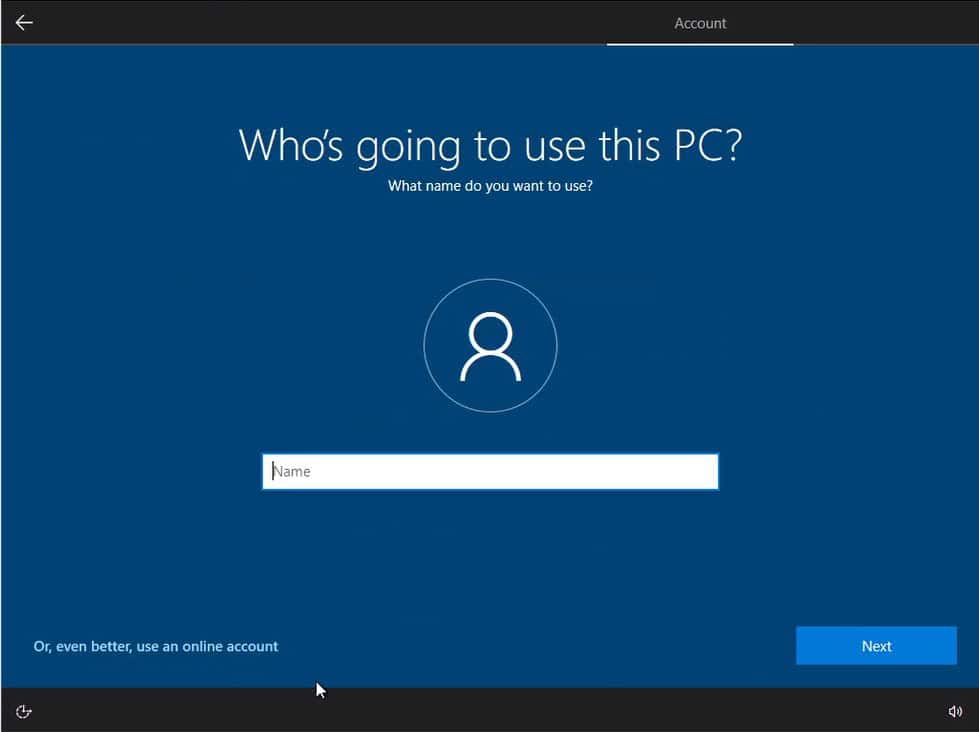
  • Username: You need put a name as a username to login in windows. And click on Next.
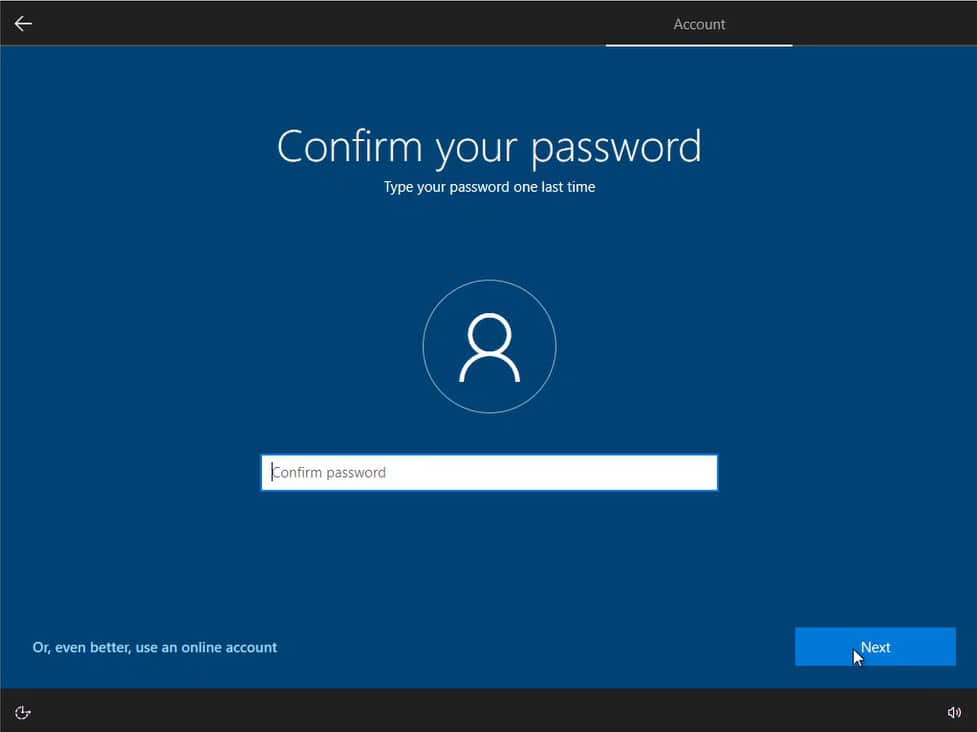
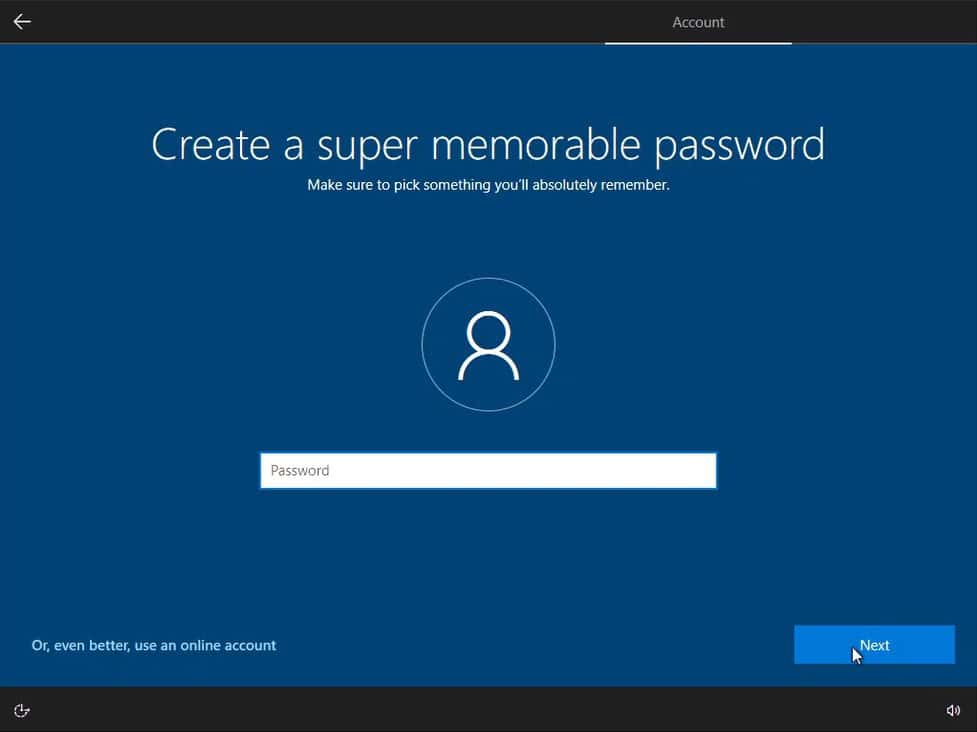
  • Password: You need put a super memorable password to login in windows. And click on Next.

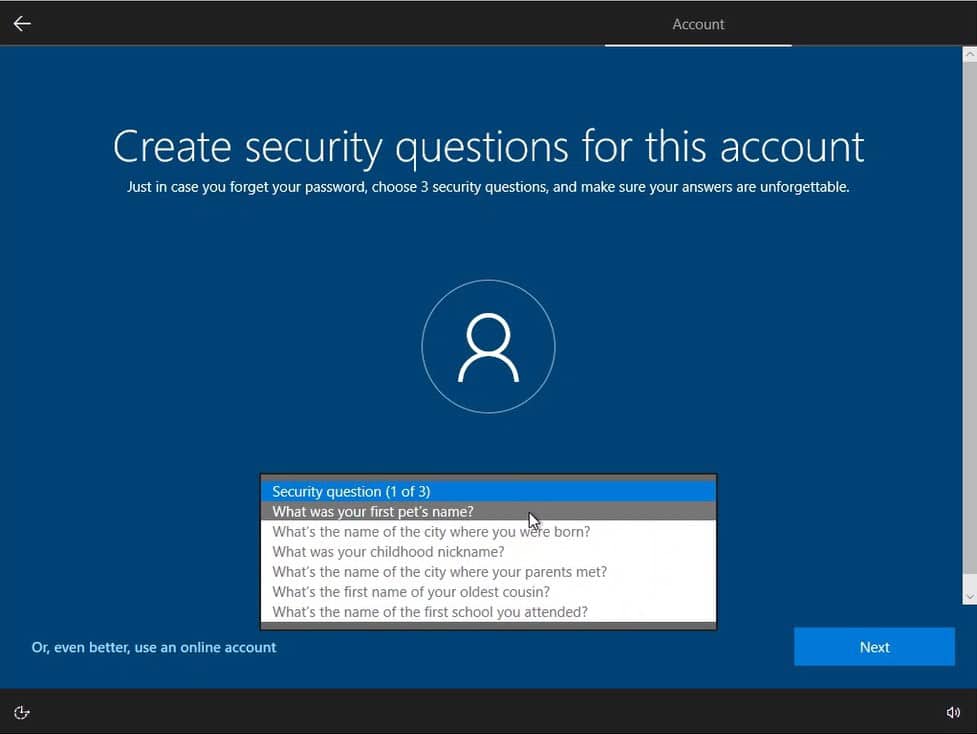
  • Security questions: Create security question for this account.

    Choose a first question:

  • What was your first pet´s name?
  • What´s the name of the city where you were born?
  • What was your childhood nickname?
  • What´s the name of the city where your parents met?
  • What´s the first name of your oldest cousin?
  • What´s the name of the first school you attended?

    Click on Next.

Choose a second and third question, and click on Next.

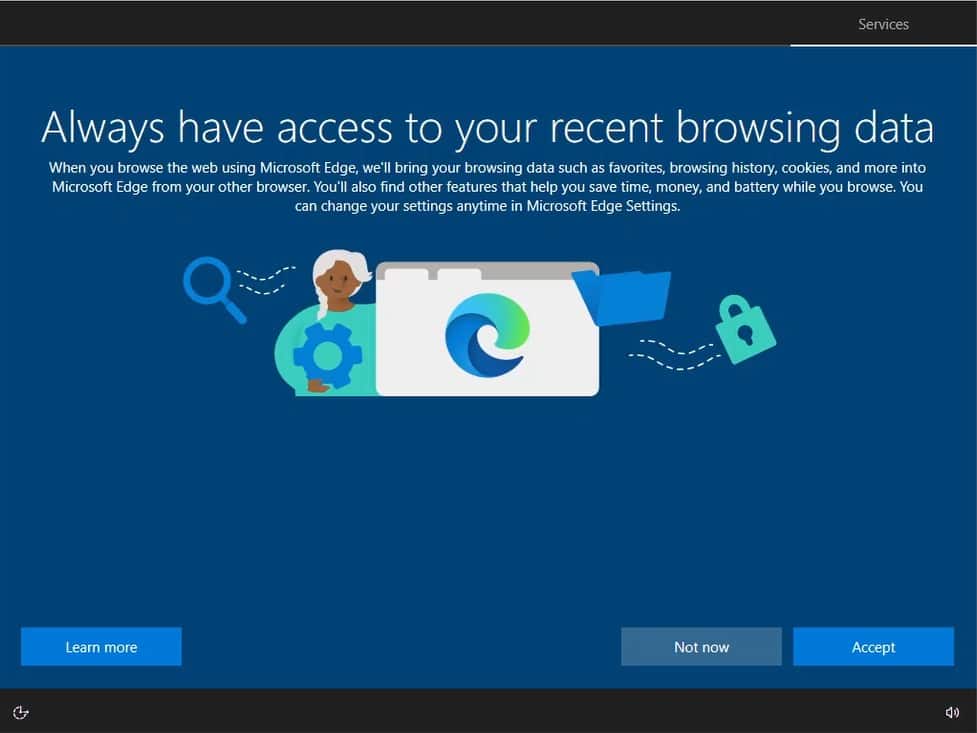
Browsing data:

Click on Accept.

Choose privacy settings:
Click on Accept.

Customize your experience:

Let Cortana Help you:

Ready! You will see a Hi message.


Step 5: Completion and initial configuration

During the process, your PC will restart several times.

When you reach the login screen, the installation will have been successfully completed!

Product key activation:

Go to Update & Security →  ActivationChange product key → Activate.

In this way, your operating system is properly activated
DOWNLOADS IN OTHER LANGUAGES

Microsoft Windows 10 Pro

Download the desired version with the following download link.

LANGUAGE 32 BITS 64 BITS
DEUTSCH Herunterladen Herunterladen
ENGLISH Download Download
FRANÇAIS Télécharger Télécharger
ITALIANO Scarica Scarica
ESPAÑOL Descarga Descarga
NEDERLANDS Downloaden Downloaden
SVERIGE Ladda ner Ladda ner

(If your device has more than 4 Gb of RAM, we recommend the 64-bit version)

VIDEO

We’ll have the video very soon.

NOTE

Microsoft has gradually phased out support for some older products. Therefore, telephone activation is no longer possible. If you have any problems or questions during the Installation, please contact our 24/7 customer service.

For faster assistance, you can also reach us directly through our live chat, available 24/7 on our website.

Microsoft Windows 11 Home

Installation guide Microsoft Windows 11 Home

DOWNLOAD

Microsoft Windows 11 Home

Download the desired version with the following download link.

(If your device has more than 8 Gb of RAM, and 64-bit version)

SYSTEM REQUIREMENTS

Read this very carefully

These are the minimum system requirements for installing Microsoft Windows 11 on a PC. If your device does not meet these requirements, you may not be able to install Microsoft Windows 11.

You can download the application PC Health Check that will tell you if your device supports Microsoft Windows 11.

Processor 1 gigahertz (GHz) or faster with 2 or more cores on a compatible 64-bit processor or System on a Chip (SoC).
RAM 4 gigabytes (GB).
Storage 64 GB or larger storage device Note: See below under “More information on storage space to keep Microsoft Windows 11 up-to-date” for more details.
System firmware UEFI, Secure Boot capable.
TPM Trusted Platform Module (TPM) version 2.0. Check here for instructions on how your PC might be enabled to meet this requirement.
Graphics card Compatible with DirectX 12 or later with WDDM 2.0 driver.
Display High definition (720p) display that is greater than 9” diagonally, 8 bits per color channel.
Internet connection and Microsoft account Microsoft Windows 11 Home edition requires internet connectivity and a Microsoft account.
Switching a device out of Microsoft Windows 11 Home in S mode also requires internet connectivity. Learn more about S mode here..
For all Microsoft Windows 11 editions, internet access is required to perform updates and to download and take advantage of some features. A Microsoft account is required for some features.

LICENCE AND ACTIVATION

Once you have the license in your possession, follow these steps to activate your Windows Operating System.

Product key activation:

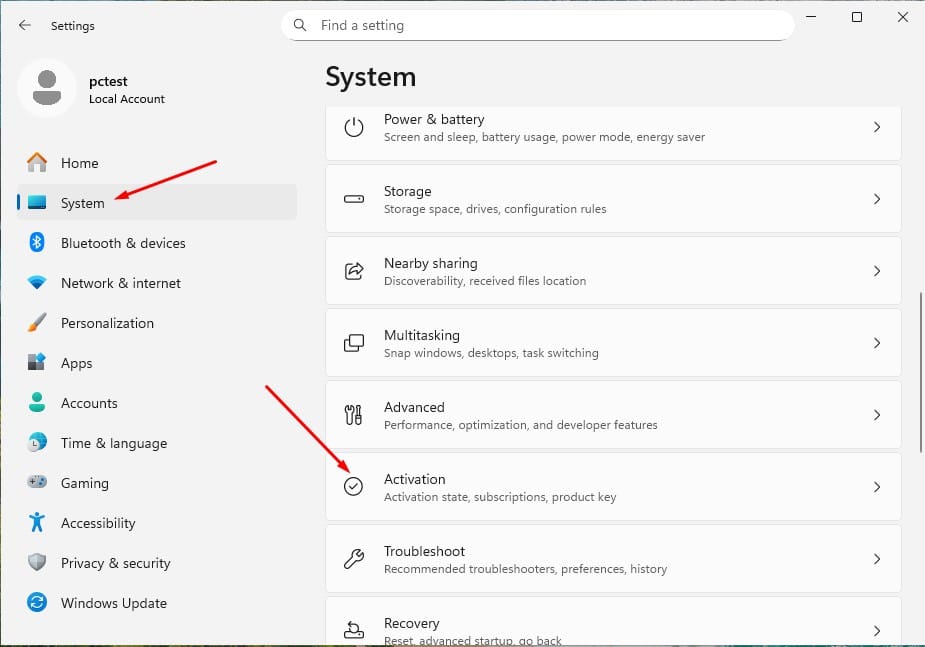
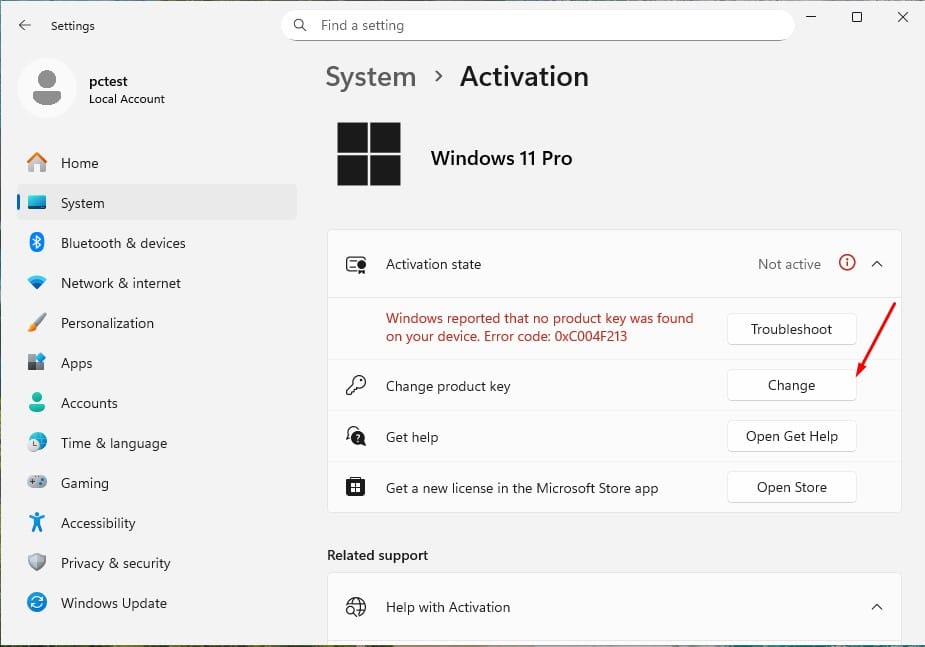
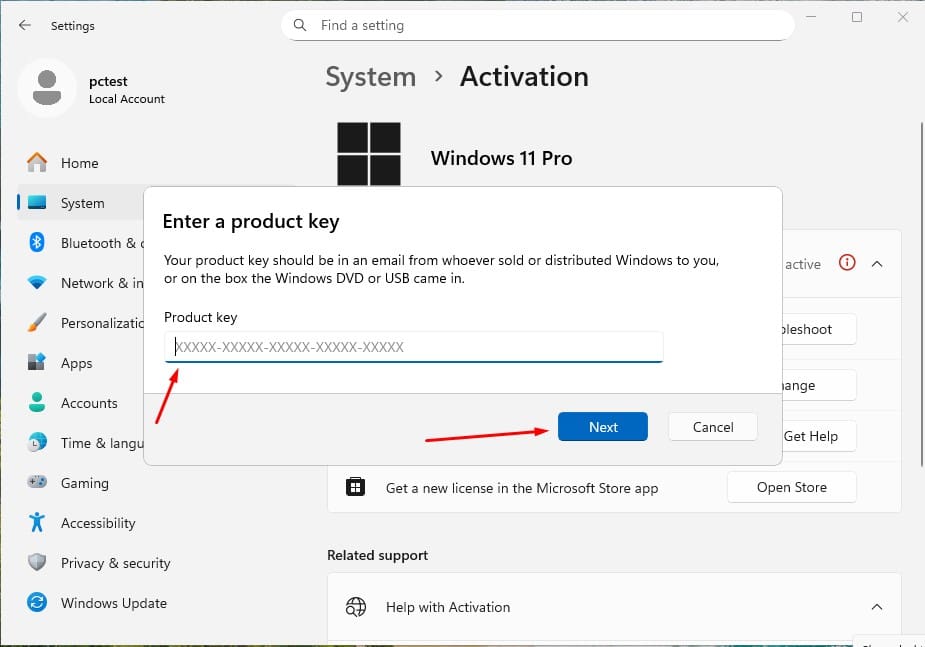
Go to SettingsSystemActivationChange product key.

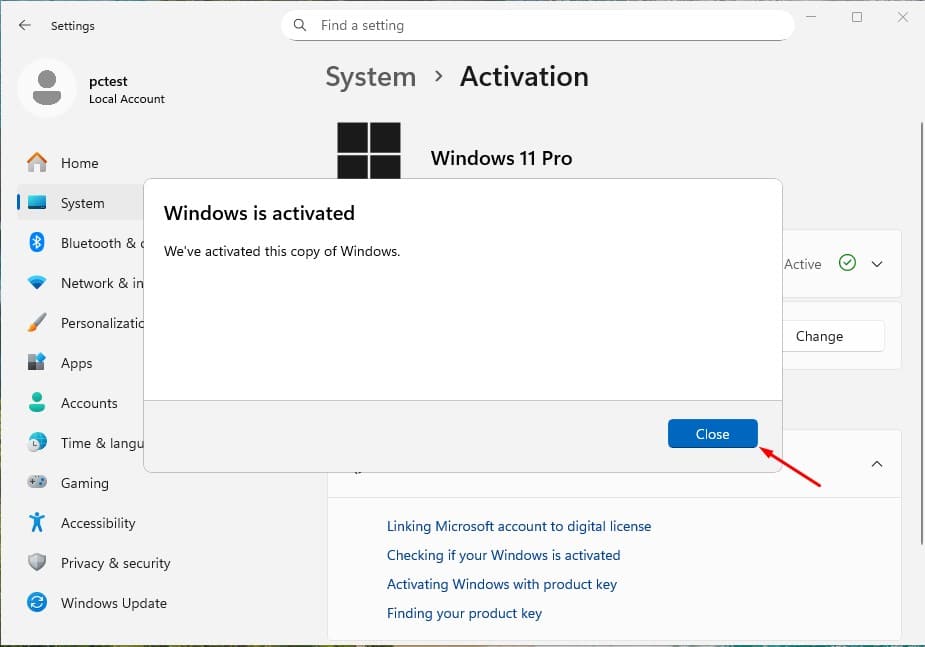
In this way, your operating system is properly activated
UPGRADE FROM WINDOWS 10 HOME TO WINDOWS 11 HOME

Check requirements:

  • Download from Microsoft 👉 https://aka.ms/GetPCHealthCheckApp
  • Install and run it.
  • It will tell you if your computer meets the requirements (TPM 2.0, Secure Boot, compatible CPU, etc.).
  • If everything is OK, proceed to the next step.

Once you have checked these steps and confirmed everything is fine, we can proceed with updating your Operating System.

Use the Windows 11 Installation Assistant

  1. Download from 👉 https://www.microsoft.com/software-download/windows11
  2. Click “Download now” under Windows 11 Installation Assistant.
  3. Run the installer (Windows11InstallationAssistant.exe).
  4. Accept the terms → the assistant will download and upgrade your Windows 10 Home to 11 Home, keeping your programs and files.

CLEAN INSTALLATION

IMPORTANT NOTE:

This installation guide is intended for users who wish to do a clean install of Windows 11 on a new or existing hard drive. It requires intermediate or advanced technical knowledgeIf you have no previous experience with clean installations of operating systems, it is recommended to perform the process with an expert to avoid errors or data loss.

Prerequisites

  • A blank USB drive with at least 8 GB of storage.
  • A computer with Windows 10 or Windows 11 installed (to create the installer).
  • Back up all your files before starting, as this process will format your disk and delete all existing data.
  • Save your important files, a clean installation will format the hard drive and erase all previous information.
  • Make sure you have access to your passwords, files, and licenses before proceeding.

Step 1: Download the media creation tool

Download the official Microsoft program that allows you to create a USB installer.

  1. Download the Microsoft Windows 11 installer by clicking the “Download” button at the top of this manual.
  2. Run the downloaded file.

Note: When you start the tool, you will see three initial setup windows (accepting to let the app make changes, accepting terms, choosing language, and Windows version). Follow the on-screen instructions.

Step 2: Create the ISO file or install directly to a USB drive

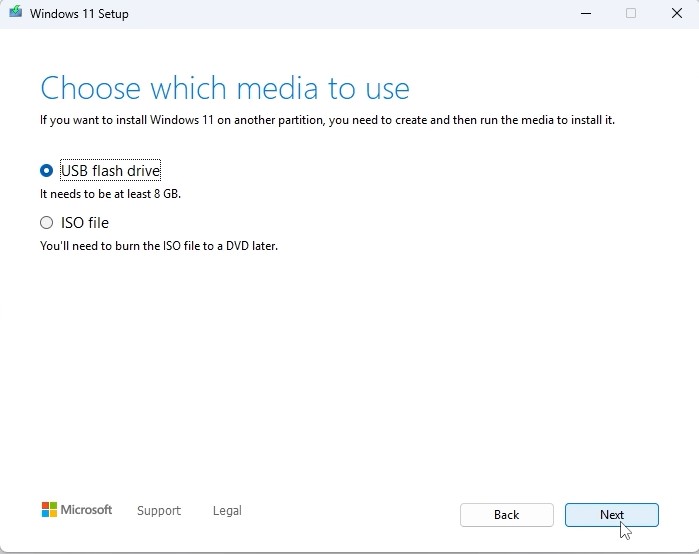
“Choose which media to use” you will see two options:

USB flash drive

  • Insert the USB drive into your PC and automatically download Windows 11 onto it.
  • Select the correct drive from the list; the tool will download and install Windows 11 onto your USB.
  • Once the process is complete, you will see this screen:

Step 3: Start the Windows 11 installation

  1. With the installation USB ready, connect the installation USB to the computer.
  2. Turn on the computer and access the BIOS or boot menu.
  3. Set the boot order so the USB is the first boot option.
  4. Save the changes and restart the computer.

Note: Check your device manual for how to enter the boot menu (varies by manufacturer: F2, F12, ESC, DEL, etc.).

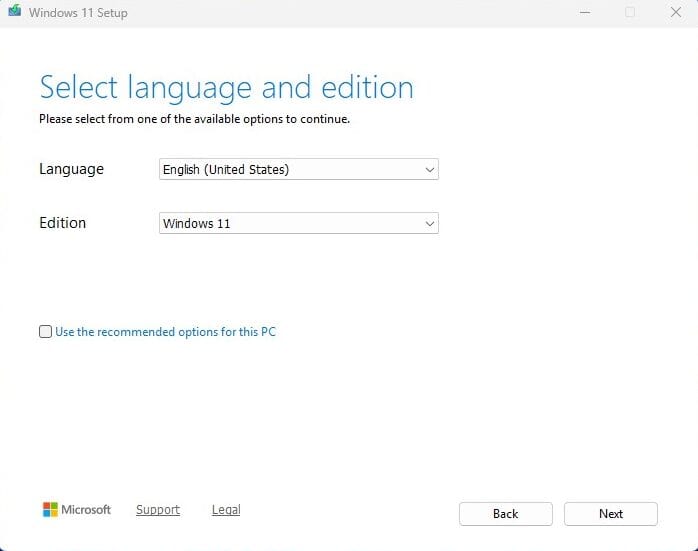
“Select language and edition”

Choose the operating system language and 64-bit architecture.

Step 4: Installation process

  • When booting from the USB, the Windows 11 installation assistant will appear.
  • Follow the on-screen steps:
    • Choose your language and keyboard layout.
    • Click “Install now”.
    • When prompted for a product key, you can enter your Windows 11 license key or click “I don’t have a product key” (you can activate it later).
  • Is this the correct country or region? – Complete the region setup.
  • Let’s name your device – You can skip this step.
  • Unlock your Microsoft experience – Sign in with your Microsoft account (email and password) to access services like OneDrive, Microsoft Store, and sync your settings. If you don^t have a Microsoft account, you will need to create one in order to proceed.

How to create a Microsoft account:

Enter:

  • Username
  • Password
  • First and last name
  • Country and date of birth
  • Secondary recovery email for the account
  • Finally, solve the Windows security CAPTCHA

Create a security PIN:

Create a personal identification number (PIN) that you will use to log in quickly to your device; it should be easy to remember.

Skip Microsoft account creation

If you don’t have a Microsoft account and don’t want to create one, or if you want to skip this step, you can do the following:

  • Once you’re at the screen where it asks you to create a Microsoft account.
    press Shift+F10.
  • A command prompt window (CMD) will open. Type the following:
    start ms-cxh:localonly
  • Then press ENTER.

    This will skip creating the account and prompt you to create a local login account.


Step 5: Completion and initial configuration

During the process, your PC will restart several times.

When you reach the login screen, the installation will have been successfully completed!

Product key activation:

Go to SettingsSystemActivationChange product key.

In this way, your operating system is properly activated
DOWNLOADS IN OTHER LANGUAGES

Microsoft Windows 11 Home

Download the desired version with the following download link.

LANGUAGE 64 BITS
DEUTSCH Herunterladen
ENGLISH Download
FRANÇAIS Télécharger
ITALIANO Scarica
ESPAÑOL Descarga
NEDERLANDS Downloaden
SVERIGE Ladda ner


(If your device has more than 4 Gb of RAM, and 64-bit version)

VIDEO

We’ll have the video very soon.

NOTE

Microsoft has gradually phased out support for some older products. Therefore, telephone activation is no longer possible. If you have any problems or questions during the Installation, please contact our 24/7 customer service.

For faster assistance, you can also reach us directly through our live chat, available 24/7 on our website.

Microsoft Windows 11 Pro

Installation guide Microsoft Windows 11 Professional

DOWNLOAD

Microsoft Windows 11 Pro

Download the desired version with the following download link: 


(Make sure your device has more than 8 Gb of RAM, and 64-bit version)

If you need the installer in another language or another version, click here.

SYSTEM REQUIREMENTS

Read this very carefully

These are the minimum system requirements for installing Microsoft Windows 11 on a PC. If your device does not meet these requirements, you may not be able to install Microsoft Windows 11.

You can download the application PC Health Check that will tell you if your device supports Microsoft Windows 11.

Processor 1 gigahertz (GHz) or faster with 2 or more cores on a compatible 64-bit processor or System on a Chip (SoC).
RAM 4 gigabytes (GB).
Storage 64 GB or larger storage device Note: See below under “More information on storage space to keep Microsoft Windows 11 up-to-date” for more details.
System firmware UEFI, Secure Boot capable.
TPM Trusted Platform Module (TPM) version 2.0. Check here for instructions on how your PC might be enabled to meet this requirement.
Graphics card Compatible with DirectX 12 or later with WDDM 2.0 driver.
Display High definition (720p) display that is greater than 9” diagonally, 8 bits per color channel.
Internet connection and Microsoft account Microsoft Windows 11 Professional requires internet connectivity and a Microsoft account.

For all Microsoft Windows 11 editions, internet access is required to perform updates and to download and take advantage of some features. A Microsoft account is required for some features.

LICENCE AND ACTIVATION

Once you have the license in your possession, follow these steps to activate your Windows Operating System.

Product key activation:

Go to SettingsSystemActivationChange product key.

In this way, your operating system is properly activated
UPGRADE FROM WINDOWS 11 HOME TO WINDOWS 11 PROFESSIONAL

To upgrade from Windows 11 Home to Windows 11 Professional, you can use a generic product key for the initial upgrade. This key won’t permanently activate Windows; it simply allows you to switch editions to Pro. After that, you can enter the purchased license key to fully activate Windows.

Here’s the process:

1. Go to Settings:

    • Open Settings > System > Activation.

2. Change the product key:

    • Select Change product key and enter the generic key for Windows 11 Professional: VK7JG-NPHTM-C97JM-9MPGT-3V66T.
    • Press Next and follow the instructions. This will initiate the upgrade to the Pro edition.
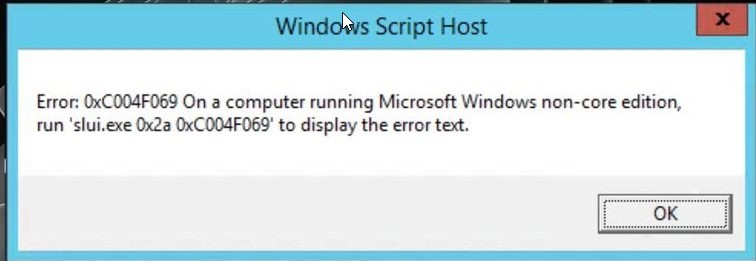
    • If you get any of the following errors on the screen, please disable the internet connection for a moment and repeat this step (2), your PC will automatically restart, once restarted you can reconnect your internet and continue with the next steps.


3. Enter your purchased activation key:

    • Once the system has been updated to Windows 11 Pro, go back to Settings > System > Activation.
    • Select Change product key again and enter the purchased Windows 11 Pro license key.
    • Follow the instructions to activate the license.

4. Restart the device if needed:

    • After activation, the system may ask you to restart to apply all changes.
    • Following these steps, you should have Windows 11 Pro activated on your device.

UPGRADE FROM WINDOWS 10 PRO TO WINDOWS 11 PRO

Check requirements:

  • Download from Microsoft 👉 https://aka.ms/GetPCHealthCheckApp
  • Install and run it.
  • It will tell you if your computer meets the requirements (TPM 2.0, Secure Boot, compatible CPU, etc.).
  • If everything is OK, proceed to the next step.

Once you have checked these steps and confirmed everything is fine, we can proceed with updating your Operating System.

Use the Windows 11 Installation Assistant

  1. Download from 👉 https://www.microsoft.com/software-download/windows11
  2. Click “Download now” under Windows 11 Installation Assistant.
  3. Run the installer (Windows11InstallationAssistant.exe).
  4. Accept the terms → the assistant will download and upgrade your Windows 10 Pro to 11 Pro, keeping your programs and files.

CLEAN INSTALLATION

IMPORTANT NOTE:

This installation guide is intended for users who wish to do a clean install of Windows 11 on a new or existing hard drive. It requires intermediate or advanced technical knowledgeIf you have no previous experience with clean installations of operating systems, it is recommended to perform the process with an expert to avoid errors or data loss.

In case you already have Windows 11 Home installed and only wish to upgrade to Windows 11 Professional, please follow the procedure described under UPGRADE FROM WINDOWS 11 HOME TO WINDOWS 11 PROFESSIONAL.

Prerequisites

  • A blank USB drive with at least 8 GB of storage.
  • A computer with Windows 10 or Windows 11 installed (to create the installer).
  • Back up all your files before starting, as this process will format your disk and delete all existing data.
  • Save your important files, a clean installation will format the hard drive and erase all previous information.
  • Make sure you have access to your passwords, files, and licenses before proceeding.

Step 1: Download the media creation tool

Download the official Microsoft program that allows you to create a USB installer.

  1. Download the Microsoft Windows 11 installer by clicking the “Download” button at the top of this manual.
  2. Run the downloaded file.

Note: When you start the tool, you will see three initial setup windows (accepting changes, accepting terms, choosing language and Windows version). Follow the on-screen instructions.

Step 2: Create the ISO file or install directly to a USB drive

“Choose which media to use” you will see two options:

USB flash drive

  • Insert the USB drive into your PC and automatically download Windows 11 onto it.
  • Select the correct drive from the list; the tool will download and install Windows 11 onto your USB.
  • Once the process is complete, you will see this screen:

Step 3: Start the Windows 11 installation

  1. With the installation USB ready, connect the installation USB to the computer.
  2. Turn on the computer and access the BIOS or boot menu.
  3. Set the boot order so the USB is the first boot option.
  4. Save the changes and restart the computer.

Note: Check your device manual for how to enter the boot menu (varies by manufacturer: F2, F12, ESC, DEL, etc.).

“Select language and edition”

Choose the operating system language and 64-bit architecture.

Step 4: Installation process

  • When booting from the USB, the Windows 11 installation assistant will appear.
  • Follow the on-screen steps:
    • Choose your language and keyboard layout.
    • Click “Install now”.
    • When prompted for a product key, you can enter your Windows 11 license key or click “I don’t have a product key” (you can activate it later).
  • Is this the correct country or region? – Complete the region setup.
  • Let’s name your device – You can skip this step.
  • Unlock your Microsoft experience – Sign in with your Microsoft account (email and password) to access services like OneDrive, Microsoft Store, and sync your settings. If you don^t have a Microsoft account, you will need to create one in order to proceed.

How to create a Microsoft account:

Enter:

  • Username
  • Password
  • First and last name
  • Country and date of birth
  • Secondary recovery email for the account
  • Finally, solve the Windows security CAPTCHA

Create a security PIN:

Create a personal identification number (PIN) that you will use to log in quickly to your device; it should be easy to remember.

Skip Microsoft account creation

If you don’t have a Microsoft account and don’t want to create one, or if you want to skip this step, you can do the following:

  • Once you’re at the screen where it asks you to create a Microsoft account.
    press Shift+F10.
  • A command prompt window (CMD) will open. Type the following:
    start ms-cxh:localonly
  • Then press ENTER.

    This will skip creating the account and prompt you to create a local login account.


Step 5: Completion and initial configuration

During the process, your PC will restart several times.

When you reach the login screen, the installation will have been successfully completed!

Product key activation:

Go to SettingsSystemActivationChange product key.

In this way, your operating system is properly activated

DOWNLOADS IN OTHER LANGUAGES

Microsoft Windows 11 Pro

Download the desired version with the following download link.

LANGUAGE 64 BITS
DEUTSCH Herunterladen
ENGLISH Download
FRANÇAIS Télécharger
ITALIANO Scarica
ESPAÑOL Descarga
NEDERLANDS Downloaden
SVERIGE Ladda ner


(If your device has more than 4 Gb of RAM, and 64-bit version)

VIDEO

NOTE

Microsoft has gradually phased out support for some older products. Therefore, telephone activation is no longer possible. If you have any problems or questions during the Installation, please contact our 24/7 customer service.

For faster assistance, you can also reach us directly through our live chat, available 24/7 on our website.

Microsoft Windows 10 Pro

Installation guide Microsoft Windows 10 Professional

DOWNLOAD

Microsoft Windows 10 Pro

Download the desired version with the following download link.

(If your device has more than 8 Gb of RAM, and 64-bit version)

SYSTEM REQUIREMENTS

Read this very carefully

These are the minimum system requirements for installing Microsoft Windows 10 on a PC. If your device does not meet these requirements, you may not be able to install Microsoft Windows 10.

You can download the application PC Health Check that will tell you if your device supports Microsoft Windows 10.

Processor 1 gigahertz (GHz) or faster with 2 or more cores on a compatible 64-bit processor or System on a Chip (SoC).
RAM 4 gigabytes (GB).
Storage 64 GB or larger storage device Note: See below under “More information on storage space to keep Microsoft Windows 10 up-to-date” for more details.
Graphics card Compatible with DirectX 12 or later with WDDM 2.0 driver.
Display High definition (720p) display that is greater than 9” diagonally, 8 bits per color channel.

LICENCE AND ACTIVATION

Once you have the license in your possession, follow these steps to activate your Windows Operating System.

Product key activation:

Go to Update & Security →  ActivationChange product key → Activate.

In this way, your operating system is properly activated

UPGRADE FROM WINDOWS 10 HOME TO WINDOWS 10 PROFESSIONAL

To upgrade from Windows 10 Home to Windows 10 Professional, you can use a generic product key for the initial upgrade. This key won’t permanently activate Windows; it simply allows you to switch editions to Pro. After that, you can enter the purchased license key to fully activate Windows.

Here’s the process:

1. Go to Settings:

    • Open Update & Security →  ActivationChange product key → Activate

2. Change the product key:


    • Select Change product key and enter the generic key for Windows 10 Professional: VK7JG-NPHTM-C97JM-9MPGT-3V66T
    • Press Next and follow the instructions. This will initiate the upgrade to the Pro edition.
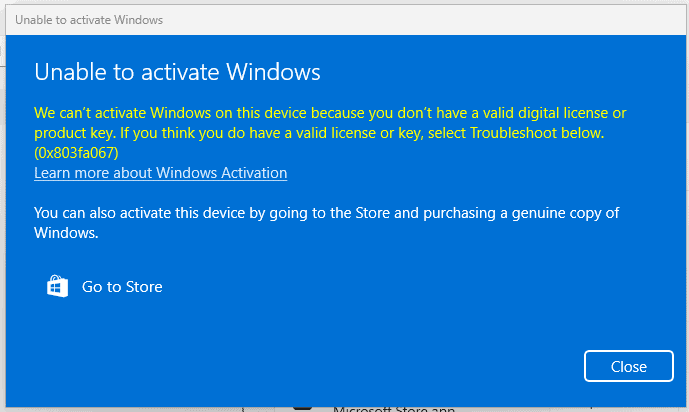
    • If you get any of the following errors on the screen, please disable the internet connection for a moment and repeat this step (2), your PC will automatically restart, once restarted you can reconnect your internet and continue with the next steps.
    •  

  •  
  •  


3. Enter your purchased activation key:

    • Once the system has been updated to Windows 10, go back to Update & Security > Activation.
    • Select Change product key again and enter the purchased Windows 10 Pro license key.
    • Follow the instructions to activate the license.

4. Restart the device if needed:

    • After activation, the system may ask you to restart to apply all changes.
    • Following these steps, you should have Windows 10 Pro activated on your device.

CLEAN INSTALLATION

IMPORTANT NOTE:

This installation guide is intended for users who wish to do a clean install of Windows 10 Pro on a new or existing hard drive. It requires intermediate or advanced technical knowledgeIf you have no previous experience with clean installations of operating systems, it is recommended to perform the process with an expert to avoid errors or data loss.

In case you already have Windows 10 Home installed and only wish to upgrade to Windows 10 Professional, please follow the procedure described under UPGRADE FROM WINDOWS 10 HOME TO WINDOWS 10 PROFESSIONAL.

Prerequisites

  • A blank USB drive with at least 8 GB of storage.
  • A computer with Windows 10 or Windows 11 installed (to create the installer).
  • Back up all your files before starting, as this process will format your disk and delete all existing data.
  • Save your important files, a clean installation will format the hard drive and erase all previous information.
  • Make sure you have access to your passwords, files, and licenses before proceeding.

Step 1: Download the media creation tool

Download the official Microsoft program that allows you to create a USB installer.

  1. Download the Microsoft Windows 10 installer by clicking the “Download” button at the top of this manual.
  2. Run the downloaded file.

Note: When you start the tool, you will see three initial setup windows (accepting changes, accepting terms, choosing language and Windows version). Follow the on-screen instructions.

Step 2: Create the ISO file or install directly to a USB drive

“Choose which media to use” you will see two options:

USB flash drive

  • Insert the USB drive into your PC and automatically download Windows 10 onto it.
  • Select the correct drive from the list; the tool will download and install Windows 10 onto your USB.
  • Once the process is complete, you will see this screen:

Step 3: Start the Windows 10 installation

  1. With the installation USB ready, connect the installation USB to the computer.
  2. Turn on the computer and access the BIOS or boot menu.
  3. Set the boot order so the USB is the first boot option.
  4. Save the changes and restart the computer.

Note: Check your device manual for how to enter the boot menu (varies by manufacturer: F2, F12, ESC, DEL, etc.).

“Select language and edition”

Choose the operating system language and 64-bit architecture.

Step 4: Installation process

  • When booting from the USB, the Windows 10 installation assistant will appear.
  • Follow the on-screen steps:
    • Choose your language and keyboard layout.
    • Click “Install now”.
    • When prompted for a product key, you can enter your Windows 10 license key or click “I don’t have a product key” (you can activate it later).
  • Is this the correct country or region? – Complete the region setup.
  • Let’s name your device – You can skip this step.
  • Unlock your Microsoft experience – Sign in with your Microsoft account (email and password) to access services like OneDrive, Microsoft Store, and sync your settings. If you don^t have a Microsoft account, you will need to create one in order to proceed.

How to create a Microsoft account:

Enter:

  • Username
  • Password
  • First and last name
  • Country and date of birth
  • Secondary recovery email for the account
  • Finally, solve the Windows security CAPTCHA

Create a security PIN:

Create a personal identification number (PIN) that you will use to log in quickly to your device; it should be easy to remember.

Skip Microsoft account creation

If you don’t have a Microsoft account and don’t want to create one, or if you want to skip this step, you can do the following:

This will skip creating the account and prompt you to create a local login account.

 
Press the Offline account option


Once you select this option, a window will appear asking for the following information:

  • Username: You need put a name as a username to login in windows. And click on Next.
  • Password: You need put a super memorable password to login in windows. And click on Next.
  • Security questions: Create security question for this account.

    Choose a first question:

  • What was your first pet´s name?
  • What´s the name of the city where you were born?
  • What was your childhood nickname?
  • What´s the name of the city where your parents met?
  • What´s the first name of your oldest cousin?
  • What´s the name of the first school you attended?

    Click on Next.
Choose a second and third question, and click on Next.

Browsing data:
Click on Accept.

Choose privacy settings:
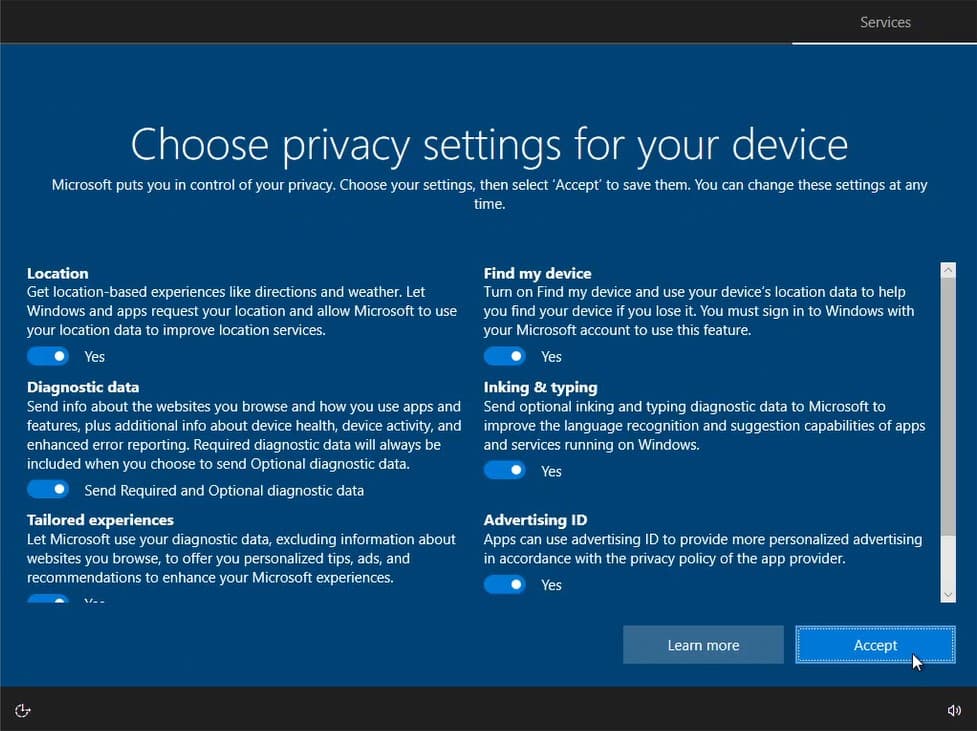
Click on Accept.

Customize your experience:
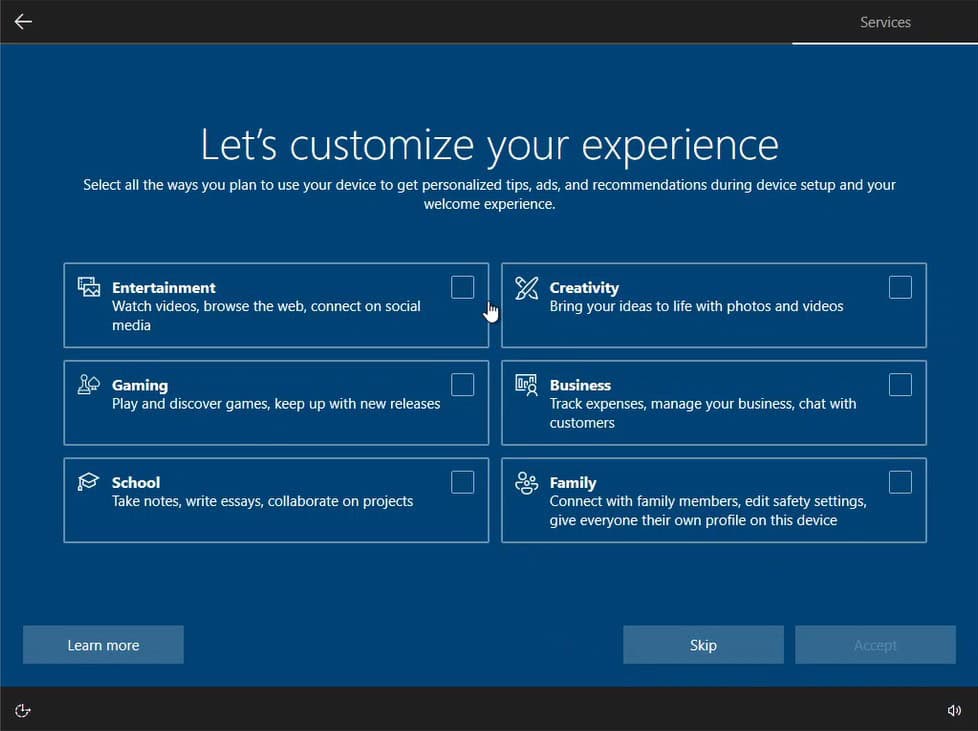
Let Cortana Help you:
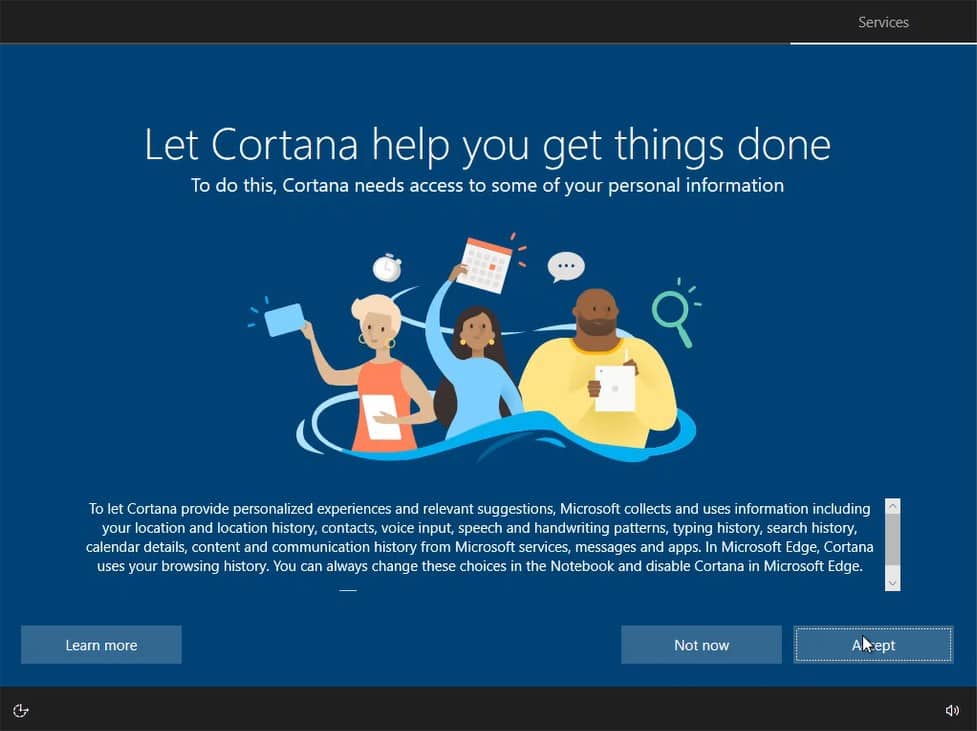
Ready! You will see a Hi message.



Step 5: Completion and initial configuration

During the process, your PC will restart several times.

When you reach the login screen, the installation will have been successfully completed!

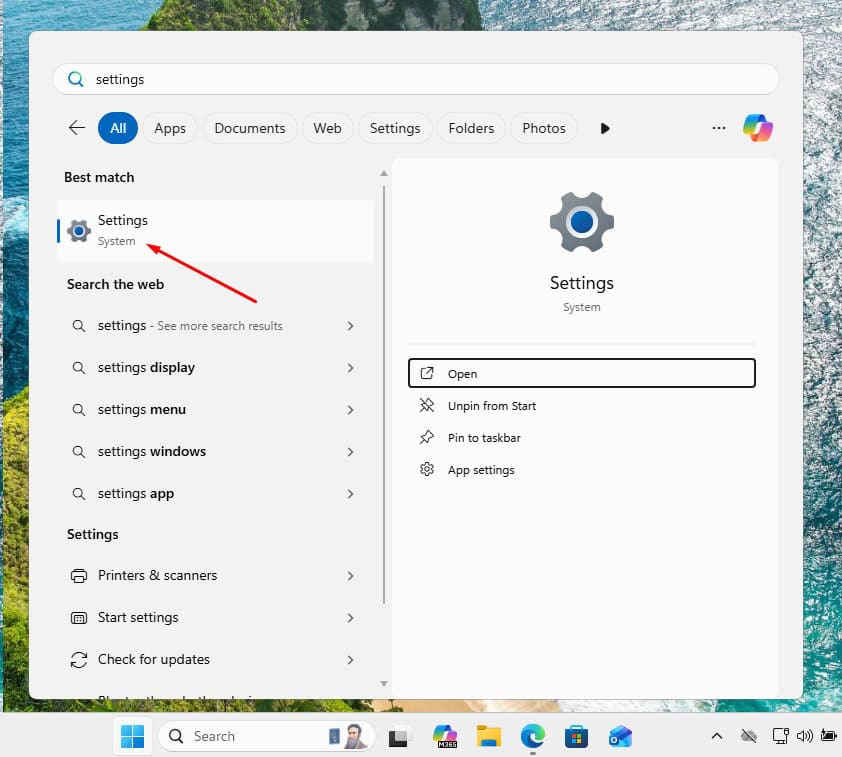
Product key activation:

Go to Update & Security →  ActivationChange product key → Activate.

In this way, your operating system is properly activated
DOWNLOADS IN OTHER LANGUAGES

Microsoft Windows 10 Pro

Download the desired version with the following download link.

LANGUAGE 32 BITS 64 BITS
DEUTSCH Herunterladen Herunterladen
ENGLISH Download Download
FRANÇAIS Télécharger Télécharger
ITALIANO Scarica Scarica
ESPAÑOL Descarga Descarga
NEDERLANDS Downloaden Downloaden
SVERIGE Ladda ner Ladda ner

(If your device has more than 4 Gb of RAM, we recommend the 64-bit version)

VIDEO

We’ll have the video very soon.

NOTE

Microsoft has gradually phased out support for some older products. Therefore, telephone activation is no longer possible. If you have any problems or questions during the Installation, please contact our 24/7 customer service.

For faster assistance, you can also reach us directly through our live chat, available 24/7 on our website.

Microsoft Windows 10 Home

Installation guide Microsoft Windows 10 Home 32 & 64 Bits​

DOWNLOAD

Microsoft Windows 10 Home

Download the desired version with the following download link.

(If your device has more than 4 Gb of RAM, we recommend the 64-bit version)

SYSTEM REQUIREMENTS

  • 1 gigahertz (GHz) or faster 32-bit (x86) or 64-bit (x64) processor
  • 1 gigabyte (GB) RAM (32 bit) or 2 GB RAM (64 bit)
  • 16 GB of available hard disk space (32-bit) or 20 GB (64-bit)
  • DirectX 9 graphics device with WDDM 1.0 or higher driver


FIRST STEPS

WINDOWS VERSION

Make sure your Microsoft Windows version matches the Microsoft Windows version of the key.

CHECK CONNECTION

Verify that you have a stable Internet connection during installation. Please follow these steps for a successful activation.

ONLINE ACTIVATION

If you already have Microsoft Windows 10 Home installed,
Try online activation 2-3 times (if successful ignore the rest)

After installing the Operating System. Let’s go and right-click on My Computer and select the properties option and click on the Activate Microsoft Windows option, then activate and enter the key provided.

IF THE ONLINE ACTIVATION WAS NOT SUCCESSFUL

Activate your password by phone: to do this, select «Show other activation methods» -> «Next» -> «Automatic during Microsoft Windows activation. Use the phone system ».

Choose your location and call one of the numbers shown.

  • Activation through Microsoft’s central activation center:
  • From the UK, please dial: 900 150 889
  • Please try 2 or 3 times in case it doesn’t work right away.
  • Activation computer does not always recognize input immediately

INSTALLATION

It is recommended that you complete the product installation and activation before signing in with your Microsoft account.

After downloading, burn the ISO file to DVD or save it to USB. Once you boot your PC / Laptop with the DVD / Pendrive the installation program will run. Follow the guided steps of the program to complete its installation.

After installing the Operating System. Let’s go and right-click on My Computer and select the properties option and click on the Activate Microsoft Windows option, then activate and enter the key provided.

DOWNLOADS IN OTHER LANGUAGES

Microsoft Windows 10 Home

Download the desired version with the following download link.

(If your device has more than 4 Gb of RAM, we recommend the 64-bit version)

NOTE

Microsoft has gradually phased out support for some older products. Therefore, telephone activation is no longer possible. If you have any problems or questions during the Installation, please contact our 24/7 customer service.

For faster assistance, you can also reach us directly through our live chat, available 24/7 on our website.

Microsoft Windows 10 Pro

Installation guide Microsoft Windows 10 Professional

DOWNLOAD

Microsoft Windows 10 Pro

Download the desired version with the following download link.

(If your device has more than 4 Gb of RAM, we recommend the 64-bit version)

SYSTEM REQUIREMENTS

  • 1 gigahertz (GHz) or faster 32-bit (x86) or 64-bit (x64) processor
  • 1 gigabyte (GB) RAM (32 bit) or 2 GB RAM (64 bit)
  • 16 GB of available hard disk space (32-bit) or 20 GB (64-bit)
  • DirectX 9 graphics device with WDDM 1.0 or higher driver


FIRST STEPS

WINDOWS VERSION

Make sure your Microsoft Windows version matches the Microsoft Windows version of the key.

CHECK CONNECTION

Verify that you have a stable Internet connection during installation. Please follow these steps for a successful activation.

ONLINE ACTIVATION

If you already have Microsoft Windows 10 Pro installed, try online activation 2-3 times (if successful ignore the rest)

After installing the Operating System. Let’s go and right-click on My Computer and select the properties option and click on the Activate Microsoft Windows option, then activate and enter the key provided.

IF THE ONLINE ACTIVATION WAS NOT SUCCESSFUL

Activate your password by phone: to do this, select «Show other activation methods» -> «Next» -> «Automatic during Microsoft Windows activation. Use the phone system ».

Choose your location and call one of the numbers shown.

  • Activation through Microsoft’s central activation center:
  • From the UK, please dial: 900 150 889
  • Please try 2 or 3 times in case it doesn’t work right away.
  • Activation computer does not always recognize input immediately

TO UPGRADE FROM WINDOWS 11 HOME TO WINDOWS 11 PROFESSIONAL

To upgrade from Windows 10 Home to Windows 10 Professional, you can use a generic product key for the initial upgrade. This key won’t permanently activate Windows; it simply allows you to switch editions to Pro. After that, you can enter the purchased license key to fully activate Windows.

Here’s the process:

1. Go to Settings:

    • Open Settings > System > Activation.


2. Change the product key:

    • Select Change product key and enter the generic key for Windows 10 Professional: VK7JG-NPHTM-C97JM-9MPGT-3V66T.
    • Press Next and follow the instructions. This will initiate the upgrade to the Pro edition.
    • If you get any error on the screen, please disable the internet connection for a moment and repeat this step (2), your PC will automatically restart, once restarted you can reconnect your internet and continue with the following steps.
    •  
    •  

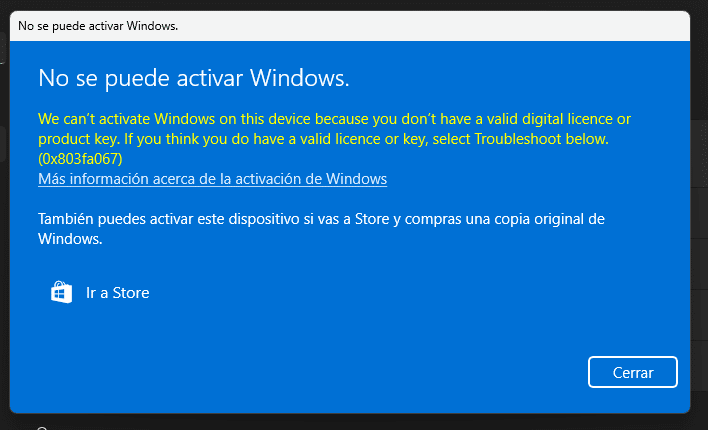
    •       images with possible errors (0x803fa067 0xC004F069)

3. Enter your purchased activation key:

    • Once the system has been updated to Windows 10 Professional, go back to Settings > System > Activation.
    • Select Change product key again and enter the purchased Windows 10 Professional license key.
    • Follow the instructions to activate the license.


4. Restart the device if needed:

    • After activation, the system may ask you to restart to apply all changes.
    • Following these steps, you should have Windows 10 Professional activated on your device.

INSTALLATION

It is recommended that you complete the product installation and activation before signing in with your Microsoft account.
 
NOTE: If you are upgrading from Microsoft Windows 10 Home, you don’t need to download the software. Please use the instructions below to update your computer to Microsoft Windows 10 Pro.

UPGRADE FROM WINDOWS 10 HOME:

It is recommended that you complete the product installation and activation before signing in with your Microsoft account.

  1. Deactivate your internet connection for the following process!
  2. Open the Settings app via the start menu (or the start page in tablet mode) and select the category Update and Security.
  3. Select Activation and then click the button Change Product Key. Enter the generic Microsoft Windows 10 Pro key VK7JG-NPHTM-C97JM-9MPGT-3V66T. This key turns Microsoft Windows 10 Home into Microsoft Windows 10 Pro.
  4. After restarting to upgrade to Microsoft Windows 10 Pro, the operating system is no longer activated.
 

Then enter the valid Microsoft Windows 10 Pro key for activation.

In some cases, the update might abort at 100% with an error. If that happens, restart manually and your system will have been upgraded to Microsoft Windows 10 Pro. You can now activate it using the provided key.

NEW INSTALLATION:

After downloading, burn the ISO file to DVD or save it to USB. Once you boot your PC / Laptop with the DVD / Pendrive the installation program will run. Follow the guided steps of the program to complete its installation.

After installing the Operating System. Let’s go and right-click on My Computer and select the properties option and click on the Activate Microsoft Windows option, then activate and enter the key provided.

DOWNLOADS IN OTHER LANGUAGES

Microsoft Windows 10 Pro

Download the desired version with the following download link.

(If your device has more than 4 Gb of RAM, we recommend the 64-bit version)

NOTE

Microsoft has gradually phased out support for some older products. Therefore, telephone activation is no longer possible. If you have any problems or questions during the Installation, please contact our 24/7 customer service.

For faster assistance, you can also reach us directly through our live chat, available 24/7 on our website.

Microsoft Windows 11 Pro

Installation guide Microsoft Windows 11 Professional

DOWNLOAD

Microsoft Windows 11 Pro

Download the desired version with the following download link.

(If your device has more than 4 Gb of RAM, and 64-bit version)

SYSTEM REQUIREMENTS

Read this very carefully

These are the minimum system requirements for installing Microsoft Windows 11 on a PC. If your device does not meet these requirements, you may not be able to install Microsoft Windows 11.

You can download the application PC Health Check that will tell you if your device supports Microsoft Windows 11.

Processor1 gigahertz (GHz) or faster with 2 or more cores on a compatible 64-bit processor or System on a Chip (SoC).
RAM4 gigabytes (GB).
Storage64 GB or larger storage device Note: See below under “More information on storage space to keep Microsoft Windows 11 up-to-date” for more details.
System firmwareUEFI, Secure Boot capable.
TPMTrusted Platform Module (TPM) version 2.0. Check here for instructions on how your PC might be enabled to meet this requirement.
Graphics cardCompatible with DirectX 12 or later with WDDM 2.0 driver.
DisplayHigh definition (720p) display that is greater than 9” diagonally, 8 bits per color channel.
Internet connection and Microsoft accountMicrosoft Windows 11 Home edition requires internet connectivity and a Microsoft account.
Switching a device out of Microsoft Windows 11 Home in S mode also requires internet connectivity. Learn more about S mode here..
For all Microsoft Windows 11 editions, internet access is required to perform updates and to download and take advantage of some features. A Microsoft account is required for some features.

FIRST STEPS

WINDOWS VERSION

Make sure your Microsoft Windows version matches the Microsoft Windows version of the key.

CHECK CONNECTION

Verify that you have a stable Internet connection during installation. Please follow these steps for a successful activation.

ONLINE ACTIVATION

If you already have Microsoft Windows 11 Pro installed, try online activation 2-3 times (if successful ignore the rest)

After installing the Operating System. Let’s go and right-click on My Computer and select the properties option and click on the Activate Microsoft Windows option, then activate and enter the key provided.

IF THE ONLINE ACTIVATION WAS NOT SUCCESSFUL

Activate your password by phone: to do this, select «Show other activation methods» -> «Next» -> «Automatic during Microsoft Windows activation. Use the phone system ».

Choose your location and call one of the numbers shown.

  • Activation through Microsoft’s central activation center:
  • From the UK, please dial: 900 150 889
  • Please try 2 or 3 times in case it doesn’t work right away.
  • Activation computer does not always recognize input immediately

TO UPGRADE FROM WINDOWS 11 HOME TO WINDOWS 11 PROFESSIONAL

To upgrade from Windows 11 Home to Windows 11 Professional, you can use a generic product key for the initial upgrade. This key won’t permanently activate Windows; it simply allows you to switch editions to Pro. After that, you can enter the purchased license key to fully activate Windows.

Here’s the process:

1. Go to Settings:

    Open Settings > System > Activation.

2. Change the product key:

  • Select Change product key and enter the generic key for Windows 11 Professional: VK7JG-NPHTM-C97JM-9MPGT-3V66T.
  • Press Next and follow the instructions. This will initiate the upgrade to the Pro edition.
  • If you get any error on the screen, please disable the internet connection for a moment and repeat this step (2), your PC will automatically restart, once restarted you can reconnect your internet and continue with the following steps.


      images with possible errors (0x803fa067 0xC004F069)

3. Enter your purchased activation key:

  • Once the system has been updated to Windows 11 Pro, go back to Settings > System > Activation.
  • Select Change product key again and enter the purchased Windows 11 Pro license key.
  • Follow the instructions to activate the license.

4. Restart the device if needed:

  • After activation, the system may ask you to restart to apply all changes.
  • Following these steps, you should have Windows 11 Pro activated on your device.

INSTALLATION

NEW INSTALLATION:

It is recommended that you complete the product installation and activation before signing in with your Microsoft account.

After downloading, open the installer and follow instructions to create a bootable USB drive or an ISO file to burn to DVD. Please make sure to back up your important files and data before proceeding! Once you boot your PC / Laptop with the DVD / USB drive, the installation program will run. Follow the guided steps of the program to set it up to your preferences and complete the installation.

During the installation you will be prompted to enter the license key you received by email. In case you don’t have the key on hand, you may choose the option “I don’t have a product key” and enter the key after finishing the installation.


In case you didn’t enter the license key during installation:

After installing the Operating System, right-click on This PC in the file explorer and select the Properties option. Click on Product Key and Activation. Go to Change product key to enter the key you received by email. Your copy of Windows is now activated.


DOWNLOADS IN OTHER LANGUAGES

Microsoft Windows 11 Pro

Download the desired version with the following download link.

LANGUAGE64 BITS
DEUTSCHHerunterladen
ENGLISHDownload
FRANÇAISTélécharger
ITALIANOScarica
ESPAÑOLDescarga
NEDERLANDSDownloaden
SVERIGELadda ner

(If your device has more than 4 Gb of RAM, and 64-bit version)

NOTE

Microsoft has gradually phased out support for some older products. Therefore, telephone activation is no longer possible. If you have any problems or questions during the Installation, please contact our 24/7 customer service.

For faster assistance, you can also reach us directly through our live chat, available 24/7 on our website.

Microsoft Windows 11 Home

Installation guide Microsoft Windows 11 Home​

DOWNLOAD

Microsoft Windows 11 Home

Download the desired version with the following download link.

(If your device has more than 4 Gb of RAM, and 64-bit version)

SYSTEM REQUIREMENTS

Read this very carefully

These are the minimum system requirements for installing Microsoft Windows 11 on a PC. If your device does not meet these requirements, you may not be able to install Microsoft Windows 11.

You can download the application PC Health Check that will tell you if your device supports Microsoft Windows 11.

Processor1 gigahertz (GHz) or faster with 2 or more cores on a compatible 64-bit processor or System on a Chip (SoC).
RAM4 gigabytes (GB).
Storage64 GB or larger storage device Note: See below under “More information on storage space to keep Microsoft Windows 11 up-to-date” for more details.
System firmwareUEFI, Secure Boot capable.
TPMTrusted Platform Module (TPM) version 2.0. Check here for instructions on how your PC might be enabled to meet this requirement.
Graphics cardCompatible with DirectX 12 or later with WDDM 2.0 driver.
DisplayHigh definition (720p) display that is greater than 9” diagonally, 8 bits per color channel.
Internet connection and Microsoft accountMicrosoft Windows 11 Home edition requires internet connectivity and a Microsoft account.
Switching a device out of Microsoft Windows 11 Home in S mode also requires internet connectivity. Learn more about S mode here..
For all Microsoft Windows 11 editions, internet access is required to perform updates and to download and take advantage of some features. A Microsoft account is required for some features.


FIRST STEPS

WINDOWS VERSION

Make sure your Microsoft Windows version matches the Microsoft Windows version of the key.

CHECK CONNECTION

Verify that you have a stable Internet connection during installation. Please follow these steps for a successful activation.

ONLINE ACTIVATION

If you already have Microsoft Windows 11 Home installed, try online activation 2-3 times (if successful ignore the rest)

After installing the Operating System. Let’s go and right-click on My Computer and select the properties option and click on the Activate Microsoft Windows option, then activate and enter the key provided.

IF THE ONLINE ACTIVATION WAS NOT SUCCESSFUL

Activate your password by phone: to do this, select «Show other activation methods» -> «Next» -> «Automatic during Microsoft Windows activation. Use the phone system ».

Choose your location and call one of the numbers shown.

  • Activation through Microsoft’s central activation center:
  • From the UK, please dial: 900 150 889
  • Please try 2 or 3 times in case it doesn’t work right away.
  • Activation computer does not always recognize input immediately

INSTALLATION

NEW INSTALLATION:

It is recommended that you complete the product installation and activation before signing in with your Microsoft account.

After downloading, open the installer and follow instructions to create a bootable USB drive or an ISO file to burn to DVD. Please make sure to back up your important files and data before proceeding! Once you boot your PC / Laptop with the DVD / USB drive, the installation program will run. Follow the guided steps of the program to set it up to your preferences and complete the installation.

During the installation you will be prompted to enter the license key you received by email. In case you don’t have the key on hand, you may choose the option “I don’t have a product key” and enter the key after finishing the installation.


In case you didn’t enter the license key during installation:

After installing the Operating System, right-click on This PC  in the file explorer and select the Properties option. Click on Product Key and Activation. Go to Change product key to enter the key you received by email. Your copy of Windows is now activated.


DOWNLOADS IN OTHER LANGUAGES

Microsoft Windows 11 Home

Download the desired version with the following download link.

LANGUAGE64 BITS
DEUTSCHHerunterladen
ENGLISHDownload
FRANÇAISTélécharger
ITALIANOScarica
ESPAÑOLDownload
NEDERLANDSDownloaden
SVERIGELadda ner

(If your device has more than 4 Gb of RAM, and 64-bit version)

NOTE

Microsoft has gradually phased out support for some older products. Therefore, telephone activation is no longer possible. If you have any problems or questions during the Installation, please contact our 24/7 customer service.

For faster assistance, you can also reach us directly through our live chat, available 24/7 on our website.

Microsoft Windows 7 Pro

Installation guide Microsoft Windows 7 Professional 32 & 64 Bits

DOWNLOAD

Microsoft Windows 7 Professional

Download the desired version with the following download link:

(If your device has more than 4 Gb of RAM, we recommend the 64-bit version)

SYSTEM REQUIREMENTS

  • 1 gigahertz (GHz) or faster 32-bit (x86) or 64-bit (x64) processor
  • 1 gigabyte (GB) RAM (32 bit) or 2 GB RAM (64 bit)
  • 16 GB of available hard disk space (32-bit) or 20 GB (64-bit)
  • DirectX 9 graphics device with WDDM 1.0 or higher driver

WINDOWS VERSION

  • PLEASE NOTE THAT SERVICE PACK 1 (SP1) MUST BE INSTALLED.

    Make sure your Microsoft Windows version matches the Microsoft Windows version of the key.

CHECK CONNECTION

Verify that you have a stable Internet connection during installation. Please follow these steps for a successful activation.

ONLINE ACTIVATION

If you already have Microsoft Windows 7 PROFESSIONAL installed,try online activation 2-3 times (if successful ignore the rest)

After installing the Operating System. Let’s go and right-click on My Computer and select the properties option and click on the Activate Microsoft Windows option, then activate and enter the key provided.

INSTALLATION

It is recommended that you complete the product installation and activation before signing in with your Microsoft account.

After downloading, burn the ISO file to DVD or save it to USB. Once you boot your PC / Laptop with the DVD / Pendrive the installation program will run. Follow the guided steps of the program to complete its installation.

IF THE ONLINE ACTIVATION WAS NOT SUCCESSFUL

Activate your password by phone: to do this, select «Show other activation methods» -> «Next» -> «Automatic during Microsoft Windows activation. Use the phone system ».

Choose your location and call one of the numbers shown.

  • Activation through Microsoft’s central activation center:
  • From the UK, please dial: 900 150 889
  • Please try 2 or 3 times in case it doesn’t work right away.
  • Activation computer does not always recognize input immediately

NOTE

  • Microsoft has gradually phased out support for some older products. Therefore, telephone activation is no longer possible. If you have any problems or questions during the Installation, please contact our 24/7 customer service.

Microsoft Windows 7 Home Premium

Installation guide Microsoft Windows 7 Home Premium 32 & 64 Bits

DOWNLOAD

Microsoft Windows 7 Home Premium

Download the desired version with the following download link: 

(If your device has more than 4 Gb of RAM, we recommend the 64-bit version)

SYSTEM REQUIREMENTS

  • 1 gigahertz (GHz) or faster 32-bit (x86) or 64-bit (x64) processor
  • 1 gigabyte (GB) RAM (32 bit) or 2 GB RAM (64 bit)
  • 16 GB of available hard disk space (32-bit) or 20 GB (64-bit)
  • DirectX 9 graphics device with WDDM 1.0 or higher driver


WINDOWS VERSION

PLEASE NOTE THAT SERVICE PACK 1 (SP1) MUST BE INSTALLED.

Make sure your Microsoft Windows version matches the Microsoft Windows version of the key.

CHECK CONNECTION

Verify that you have a stable Internet connection during installation. Please follow these steps for a successful activation.

ONLINE ACTIVATION

If you already have Microsoft Windows 7 HOME PREMIUM installed,try online activation 2-3 times (if successful ignore the rest)

After installing the Operating System. Let’s go and right-click on My Computer and select the properties option and click on the Activate Microsoft Windows option, then activate and enter the key provided.

INSTALLATION

It is recommended that you complete the product installation and activation before signing in with your Microsoft account.

After downloading, burn the ISO file to DVD or save it to USB. Once you boot your PC / Laptop with the DVD / Pendrive the installation program will run. Follow the guided steps of the program to complete its installation.

IF THE ONLINE ACTIVATION WAS NOT SUCCESSFUL

Activate your password by phone: to do this, select «Show other activation methods» -> «Next» -> «Automatic during Microsoft Windows activation. Use the phone system ».

Choose your location and call one of the numbers shown.

  • Activation through Microsoft’s central activation center:
  • From the UK, please dial: 900 150 889
  • Please try 2 or 3 times in case it doesn’t work right away.
  • Activation computer does not always recognize input immediately

NOTE

Microsoft has gradually phased out support for some older products. Therefore, telephone activation is no longer possible. If you have any problems or questions during the Installation, please contact our 24/7 customer service.