Microsoft Visio 2021 Pro

Installation guide Microsoft Visio 2021 Professional 64 & 32 Bits

DOWNLOAD

Download the program with the following download link

This EXE file is the basis for the installation of the product.

SYSTEM REQUIREMENTS

Please make sure your computer meets the minimum system requirements for installing this software:

  • 1 gigahertz (GHz) or faster 32-bit (x86) or 64-bit (x64) processor
  • 1 gigabyte (GB) RAM (32 bit) or 4 GB RAM (64 bit)
  • 4 GB of available hard disk space
  • DirectX 9 graphics device with WDDM 1.0 or higher driver

INSTALLATION

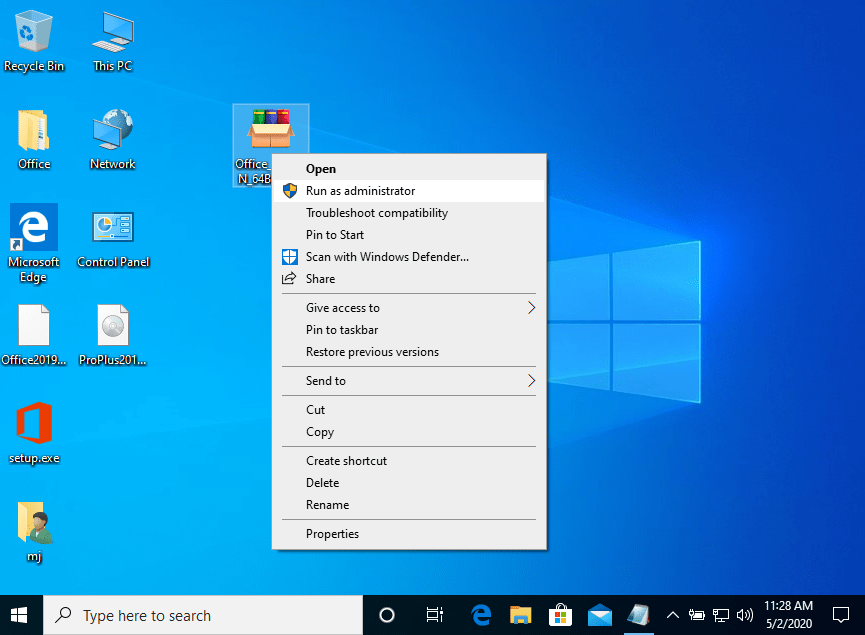
Find the downloaded installer file (it will usually be located in your Downloads folder). Right-click on the file and select “Run as administrator”. You will be asked if you want to let the app make changes to your device. Click on “Yes”.

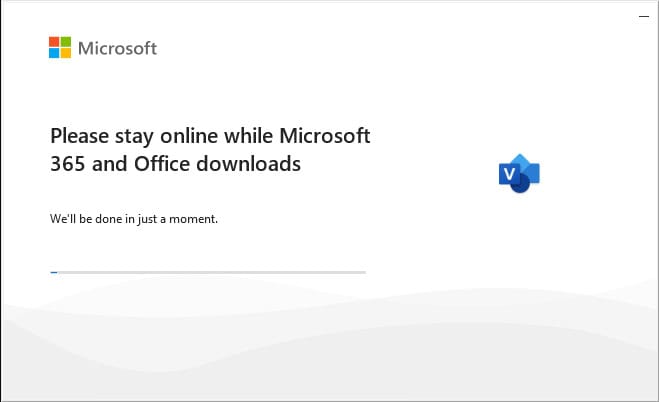
Important: you need to be online to complete the installation, as the installer will download the needed files directly from Microsoft.

Once the download is complete, follow these steps:

It is recommended that you complete the product installation and activation before signing in with your Microsoft account.

  1. Right Click on the file and then select the option, “Run as administrator”
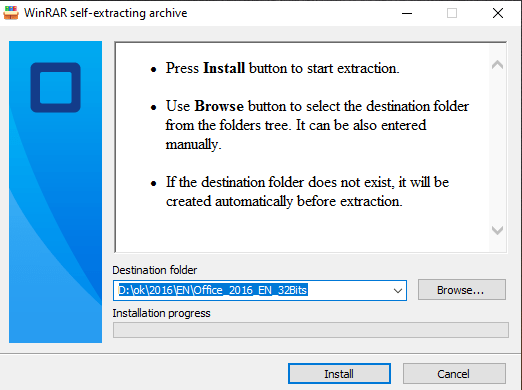
  1. Click on the “Install” button. This action unzips the application and will install your product.
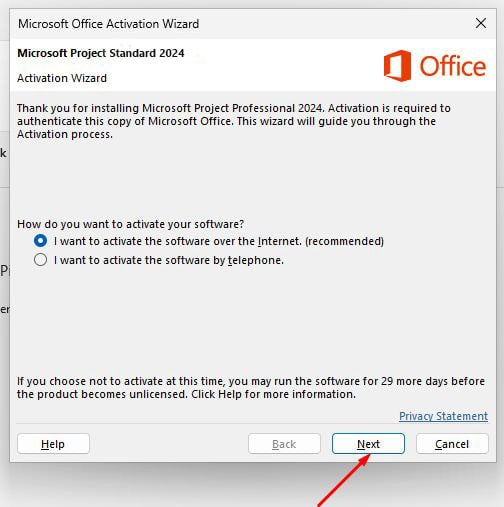
Once the download is complete and the installation of the program is complete, enter the activation key when running any application from the Microsoft Office package, it will be the first thing that will ask you.

LICENSE AND ACTIVATION

Remember, the key you have purchased is a prepaid code that is not compatible with the pre-installed software. This is an original Microsoft product. Uninstall the previous version of Microsoft Office that you have on your PC and restart your computer. This is important to avoid compatibility problems.

DOWNLOADS IN OTHER LANGUAGES

Download the program with the following download link

LANGUAGE 64 BITS 32 BITS
DEUTSCH Herunterladen Herunterladen
ENGLISH Download Download
FRANÇAIS Télécharger Télécharger
ITALIANO Scarica Scarica
ESPAÑOL Descargar Descargar
DUTCH Downloaden Downloaden
FINNISH Lataa Lataa
NORWEGIAN Last Ned Last Ned
SWEDISH Download Download
DANISH Download Download


NOTE

Microsoft has gradually phased out support for some older products. Therefore, telephone activation is no longer possible. If you have any problems or questions during the Installation, please contact our 24/7 customer service.

For faster assistance, you can also reach us directly through our live chat, available 24/7 on our website.

Microsoft Visio 2024 Standard

Installation guide Microsoft Visio 2024 Standard 64 & 32 Bits

DOWNLOAD

Download the program with the following download link:


If you need the installer in another language or another version, click here.

This EXE file is the basis for the installation of the product.

SYSTEM REQUIREMENTS


  • 1.6 gigahertz (GHz) or faster 32-bit (x86) or 64-bit (x64) processor
  • 2 gigabyte (GB) RAM (32 bit) or 4 GB RAM (64 bit)
  • 4 GB of available hard disk space
  • Screen resolution 1280 × 768
  • DirectX 10 graphics device with WDDM 1.1 or higher driver

INSTALLATION

Before installing, please make sure any previous versions of Microsoft Office have been removed and restart your computer. You may refer to this help document from Microsoft in case you need assistance with this step.

Once the download is complete, follow these steps:

It is recommended that you complete the product installation and activation before signing in with your Microsoft account.

  1. Find the downloaded installer file (it will usually be located in your Downloads folder). Double-click on the file and click on the “Install” button. You will be asked if you want to let the app make changes to your device. Click on “Yes“.

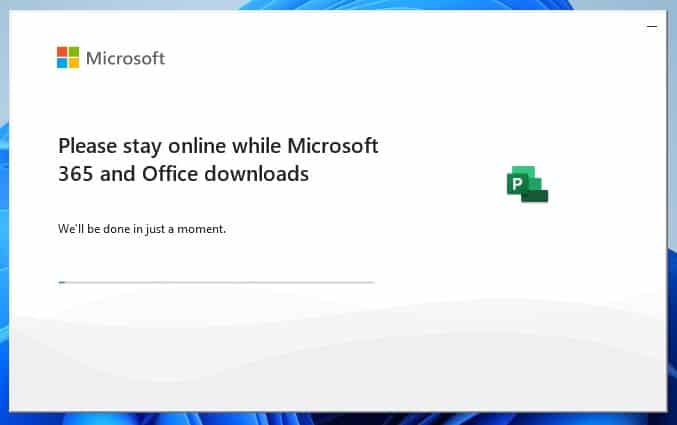
    Important: you need to be online to complete the installation, as the installer will download the needed files directly from Microsoft.

 
  1. After giving permission for the changes, your product will be installed.


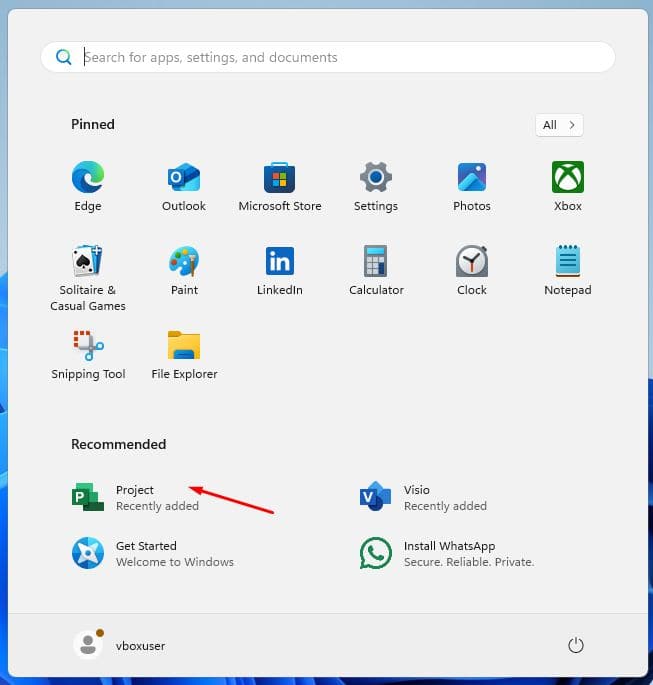
  1. Once the installation of the program is complete, open the Visio 2024 application:
    1. Click the Start button (Windows icon in the bottom-left corner).
    2. Select “All apps” to open the full list of installed applications.
    3. Scroll down to find the Microsoft Office folder or Visio 2024.
    4. You can also type the application name in the Windows search bar to find it quickly.
    5. (Optional) Right-click the app and choose “Pin to Start” or “Pin to taskbar” for faster access.

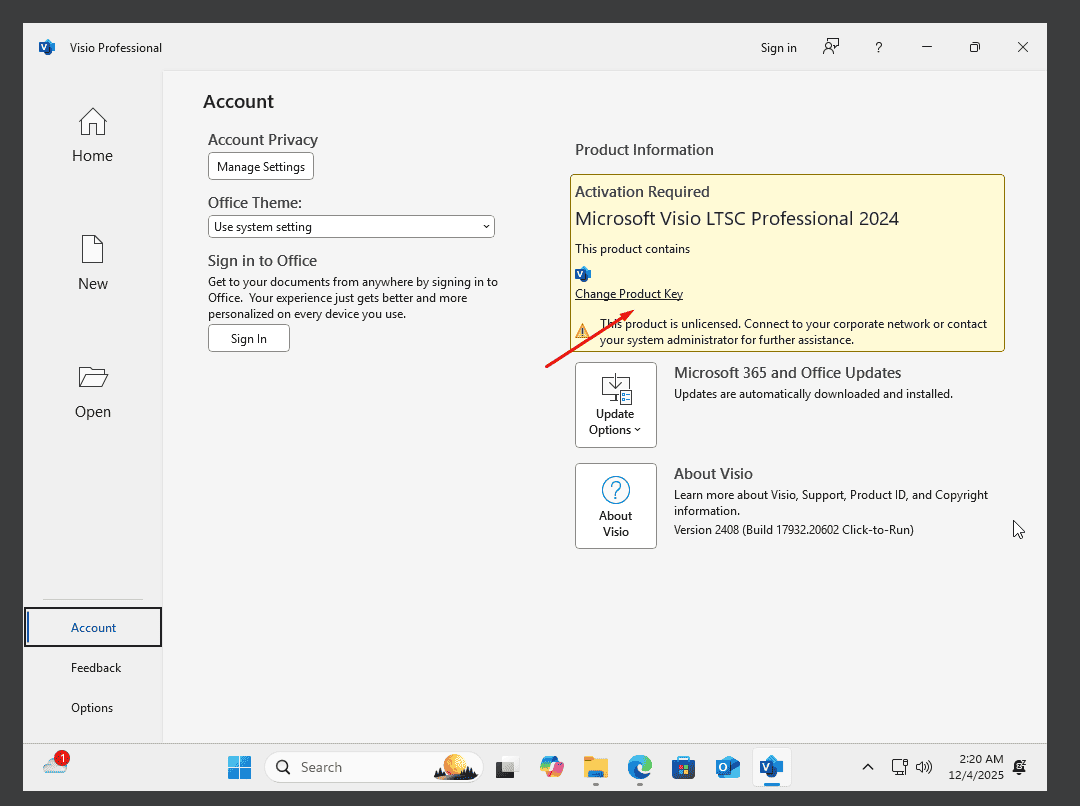
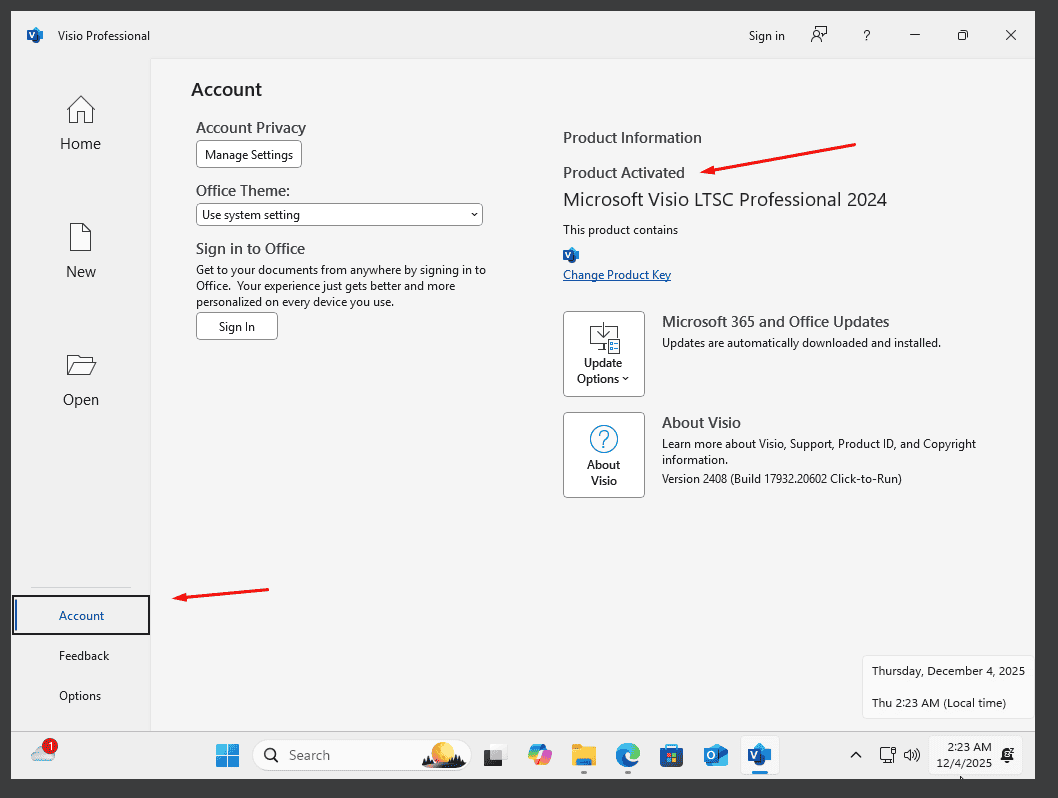
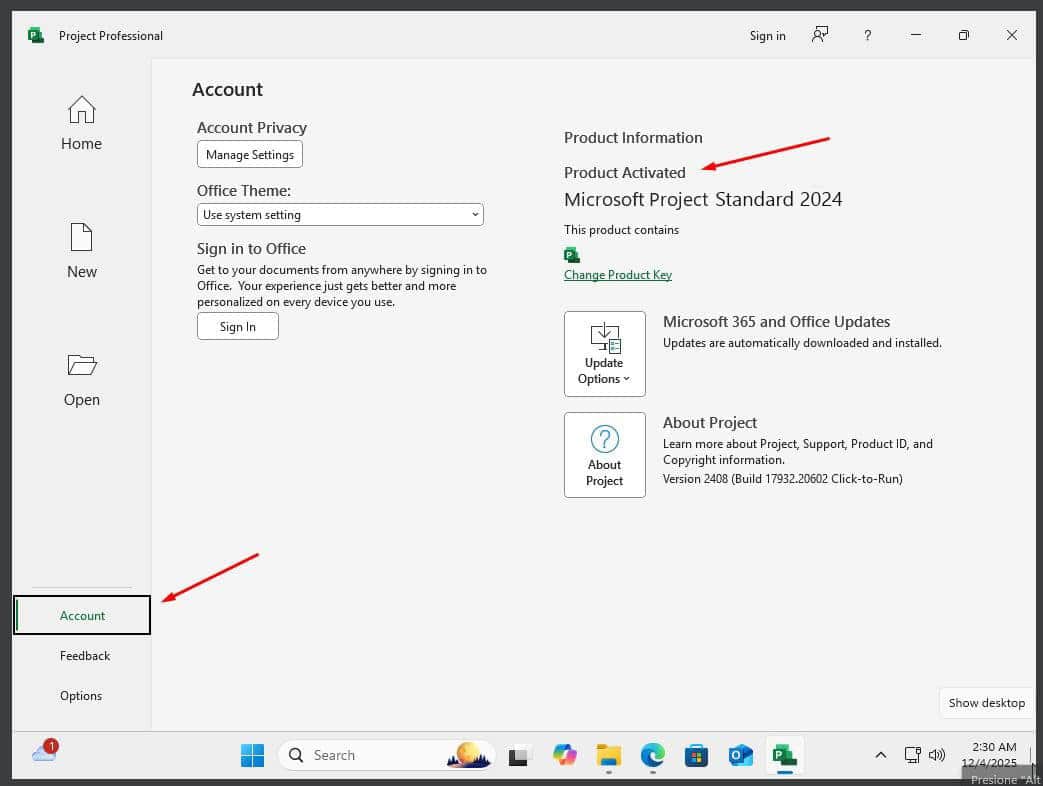
  1. Once your application is open, go to Account in the bottom left corner. Then click on Change Product Key on the right below the Office icons.


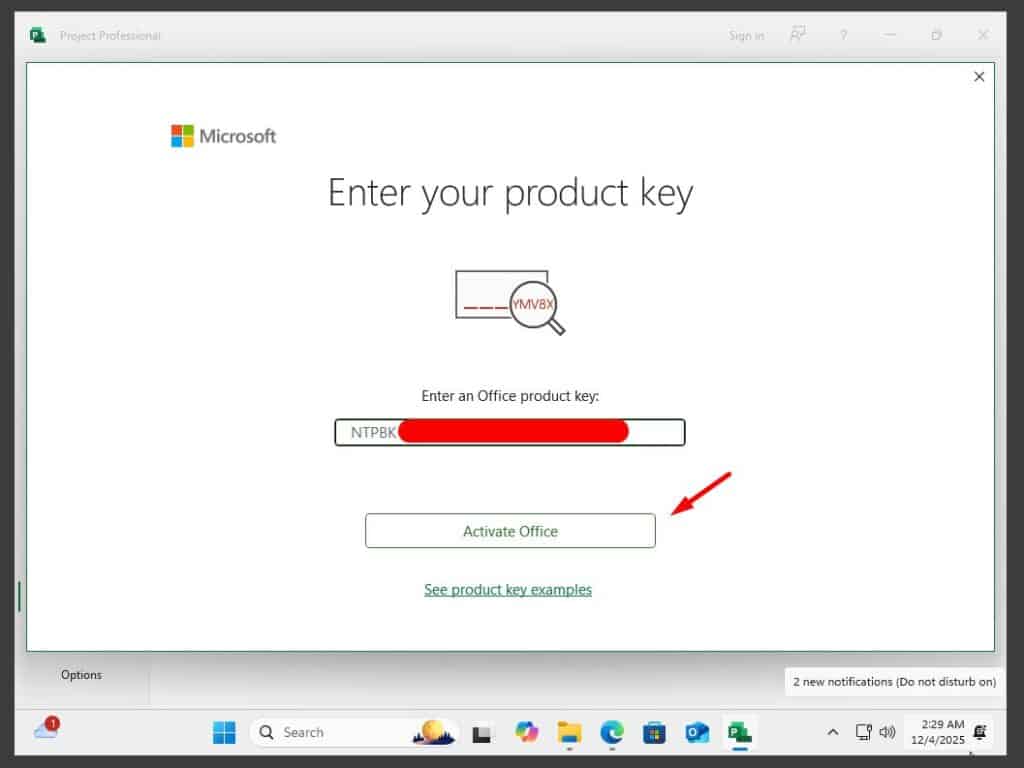
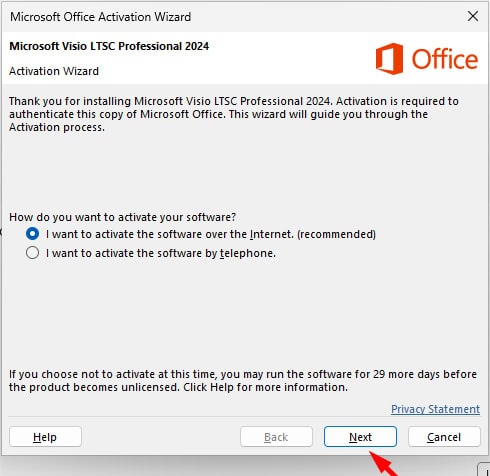
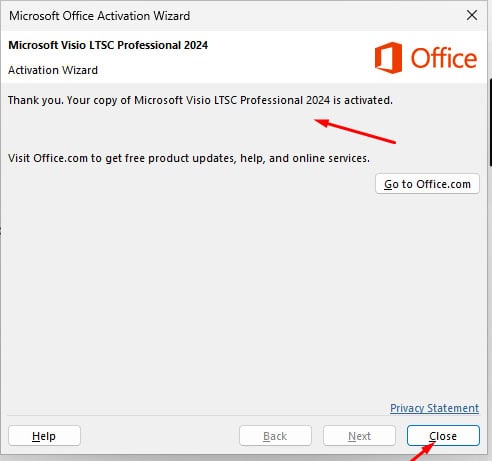
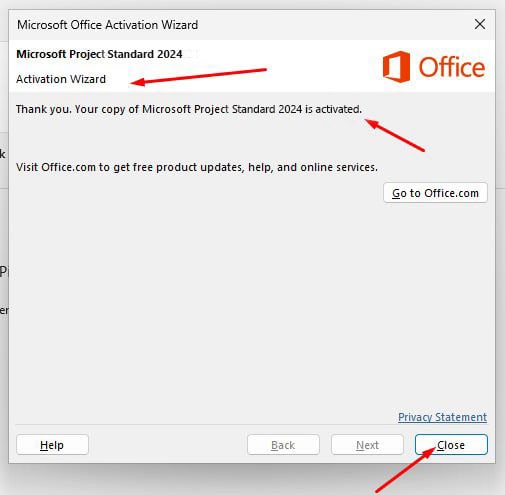
  1. Enter the activation key you received by email and follow the instructions. Your copy of Visio 2024 is now activated.

LICENSE AND ACTIVATION

Remember, the key you have purchased is a prepaid code that is not compatible with the pre-installed software. This is an original Microsoft product. Uninstall the previous version of Microsoft Office that you have on your PC and restart your computer. This is important to avoid compatibility problems.

OTHER LANGUAGES 64 & 32-BIT DOWNLOADS

Download the program with the following download link

LANGUAGE 64 BITS 32 BITS
DEUTSCH Herunterladen Herunterladen
ENGLISH Download Download
FRANÇAIS Télécharger Télécharger
ITALIANO Scarica Scarica
ESPAÑOL Download Download
DUTCH Downloaden Downloaden
FINNISH Lataa Lataa
NORWEGIAN Last Ned Last Ned
SWEDISH Download Download
DANISH Download Download

.

NOTE

Microsoft has gradually phased out support for some older products. Therefore, telephone activation is no longer possible. If you have any problems or questions during the Installation, please contact our 24/7 customer service.

For faster assistance, you can also reach us directly through our live chat, available 24/7 on our website.

Microsoft Project 2021 Standard

Installation guide Microsoft Project 2021 Standard 64 & 32 Bits

DOWNLOAD

Download the program with the following download link

This EXE file is the basis for the installation of the product.

SYSTEM REQUIREMENTS

Please make sure your computer meets the minimum system requirements for installing this software:

  • 1 gigahertz (GHz) or faster 32-bit (x86) or 64-bit (x64) processor
  • 1 gigabyte (GB) RAM (32 bit) or 4 GB RAM (64 bit)
  • 4 GB of available hard disk space
  • DirectX 9 graphics device with WDDM 1.0 or higher driver

INSTALLATION

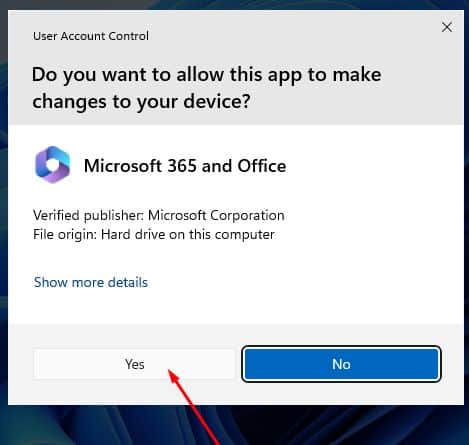
Find the downloaded installer file (it will usually be located in your Downloads folder). Right-click on the file and select “Run as administrator”. You will be asked if you want to let the app make changes to your device. Click on “Yes”.

Important: you need to be online to complete the installation, as the installer will download the needed files directly from Microsoft.

Once the download is complete, follow these steps:

It is recommended that you complete the product installation and activation before signing in with your Microsoft account.

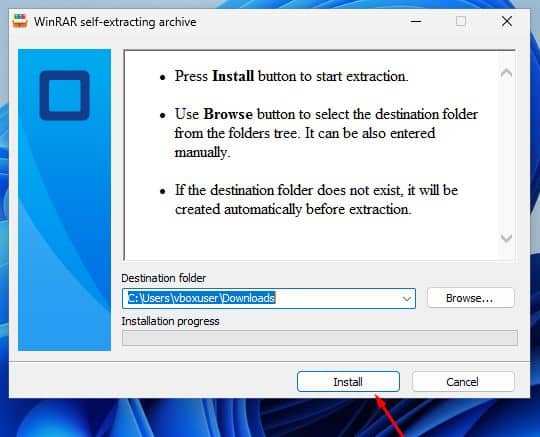
  1. Right Click on the file and then select the option, “Run as administrator”
  1. Click on the “Install” button. This action unzips the application and will install your product.
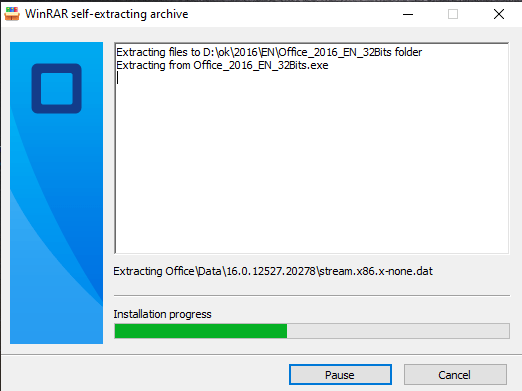
Once the download is complete and the installation of the program is complete, enter the activation key when running any application from the Microsoft Office package, it will be the first thing that will ask you.
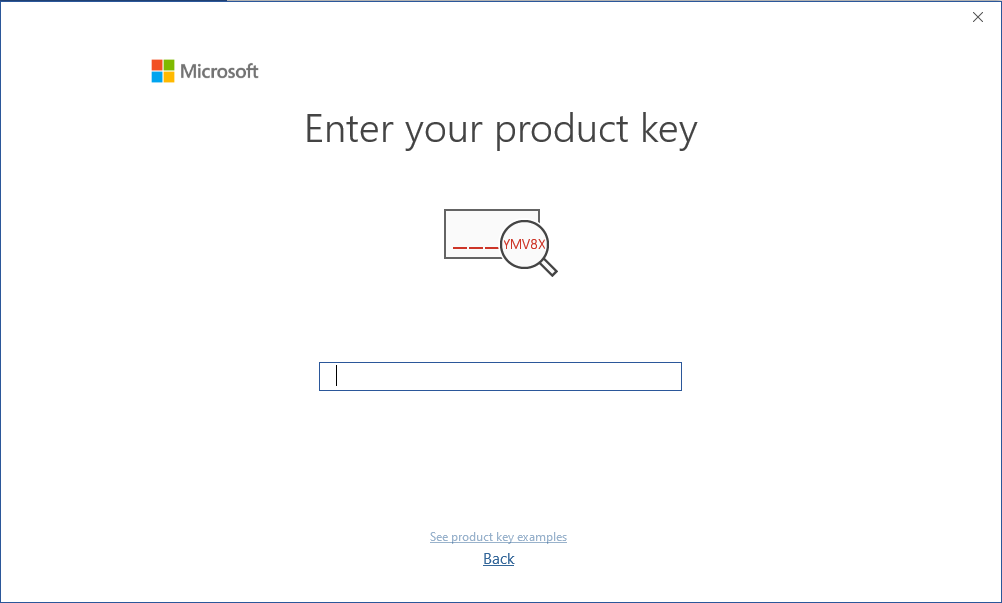
LICENSE AND ACTIVATION

Remember, the key you have purchased is a prepaid code that is not compatible with the pre-installed software. This is an original Microsoft product. Uninstall the previous version of Microsoft Office that you have on your PC and restart your computer. This is important to avoid compatibility problems.

DOWNLOADS IN OTHER LANGUAGES

Download the program with the following download link

LANGUAGE 64 BITS 32 BITS
DEUTSCH Herunterladen Herunterladen
ENGLISH Download Download
FRANÇAIS Télécharger Télécharger
ITALIANO Scarica Scarica
ESPAÑOL Descargar Descargar
DUTCH Downloaden Downloaden
FINNISH Lataa Lataa
NORWEGIAN Last Ned Last Ned
SWEDISH Download Download
DANISH Download Download


NOTE

Microsoft has gradually phased out support for some older products. Therefore, telephone activation is no longer possible. If you have any problems or questions during the Installation, please contact our 24/7 customer service.

For faster assistance, you can also reach us directly through our live chat, available 24/7 on our website.

Microsoft Project 2024 Standard

Installation guide Microsoft Project 2024 Standard 64 & 32 Bits

DOWNLOAD

Download the program with the following download link:


If you need the installer in another language or another version, click here.

This EXE file is the basis for the installation of the product.

SYSTEM REQUIREMENTS


  • 1.6 gigahertz (GHz) or faster 32-bit (x86) or 64-bit (x64) processor
  • 2 gigabyte (GB) RAM (32 bit) or 4 GB RAM (64 bit)
  • 4 GB of available hard disk space
  • Screen resolution 1280 × 768
  • DirectX 10 graphics device with WDDM 1.1 or higher driver

INSTALLATION

Before installing, please make sure any previous versions of Microsoft Office have been removed and restart your computer. You may refer to this help document from Microsoft in case you need assistance with this step.

Once the download is complete, follow these steps:

It is recommended that you complete the product installation and activation before signing in with your Microsoft account.

  1. Find the downloaded installer file (it will usually be located in your Downloads folder). Double-click on the file and click on the “Install” button. You will be asked if you want to let the app make changes to your device. Click on “Yes“.

    Important: you need to be online to complete the installation, as the installer will download the needed files directly from Microsoft.

 
  1. After giving permission for the changes, your product will be installed.


  1. Once the installation of the program is complete, open the Project 2024 application:
    1. Click the Start button (Windows icon in the bottom-left corner).
    2. Select “All apps” to open the full list of installed applications.
    3. Scroll down to find the Microsoft Office folder or Project 2024.
    4. You can also type the application name in the Windows search bar to find it quickly.
    5. (Optional) Right-click the app and choose “Pin to Start” or “Pin to taskbar” for faster access.


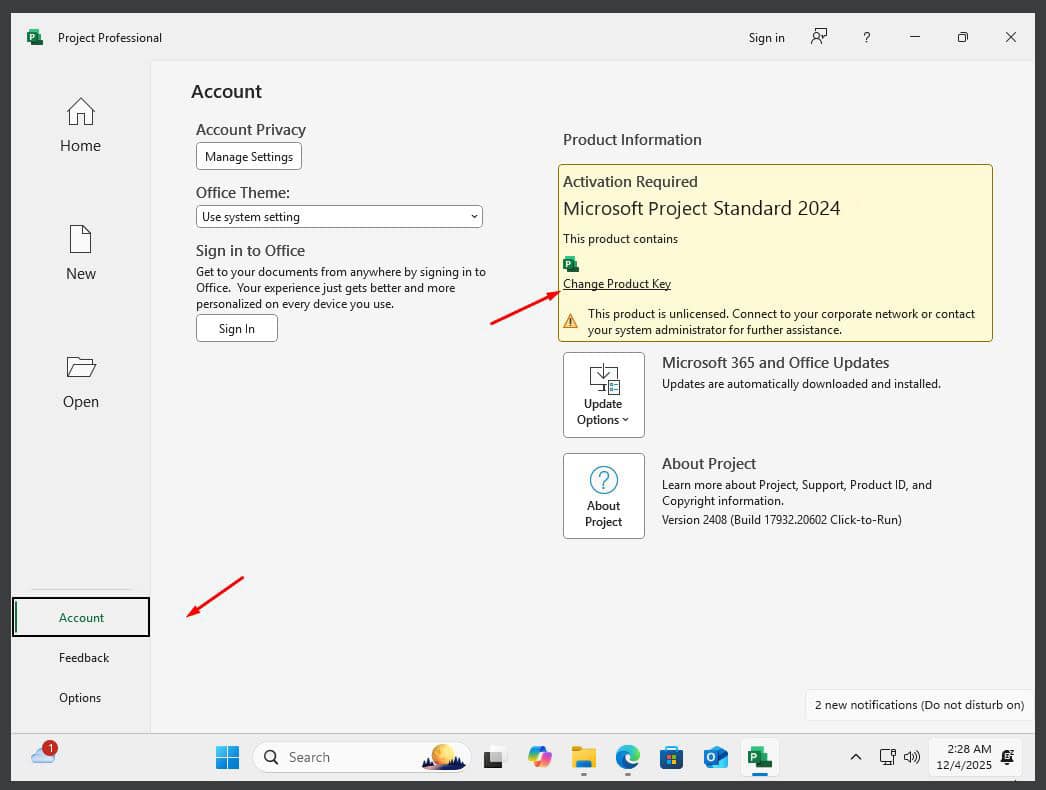
  1. Once your application is open, go to Account in the bottom left corner. Then click on Change Product Key on the right below the Office icons.


  1. Enter the activation key you received by email and follow the instructions. Your copy of Project 2024 is now activated.

LICENSE AND ACTIVATION

Remember, the key you have purchased is a prepaid code that is not compatible with the pre-installed software. This is an original Microsoft product. Uninstall the previous version of Microsoft Office that you have on your PC and restart your computer. This is important to avoid compatibility problems.

OTHER LANGUAGES 64 & 32-BIT DOWNLOADS

Download the program with the following download link

LANGUAGE 64 BITS 32 BITS
DEUTSCH Herunterladen Herunterladen
ENGLISH Download Download
FRANÇAIS Télécharger Télécharger
ITALIANO Scarica Scarica
ESPAÑOL Descargar Descargar
DUTCH Downloaden Downloaden
FINNISH Lataa Lataa
NORWEGIAN Last Ned Last Ned
SWEDISH Download Download
DANISH Download Download


NOTE

Microsoft has gradually phased out support for some older products. Therefore, telephone activation is no longer possible. If you have any problems or questions during the Installation, please contact our 24/7 customer service.

For faster assistance, you can also reach us directly through our live chat, available 24/7 on our website.

Microsoft Office Home & Business 2021 MAC

Installation guide Microsoft Office Home & Business 2021 MAC

SYSTEM REQUIREMENTS

    • Operating System: Mac OS
    • X version 10.10 or later
    • License for: 1 PC
    • Processor: Intel
    • Minimum RAM: 4 GB
    • Minimum HDD: 10 GB

HOW TO INSTALL

It is recommended that you complete the product installation and activation before signing in with your Microsoft account.

    1.  For this please make sure to create a new Microsoft account at https://setup.office.com
    2.  Click the Launchpad icon Image of the Launchpad button in the Dock to show all your apps.
    3.  Click any Microsoft Office app, such as Microsoft Word, to start the activation process. You may need to scroll down to find it.
    4. The What’s New window opens automatically. Click First Steps> Log In. Note: If there is no What’s New window, you may need to activate from within the Microsoft Office app. On the top menu, click Word >Activate
    5. Enter the e-mail address associated with Microsoft Office 2021 for Mac and click Next.Note: This must be the new Microsoft Account you have created to redeem the key at https://setup.office.com
    6. Enter the password associated with the entered e-mail address and click Login. Note: Depending on your e-mail provider, this screen may look different.
    7. The system checks if you have a valid license and then activates the product.
    8. You did it! Click Get started using Word to begin using the app.

Tip: To easily launch Microsoft Office apps, you can add them to the dock.

NOTE

Microsoft has gradually phased out support for some older products. Therefore, telephone activation is no longer possible. If you have any problems or questions during the Installation, please contact our 24/7 customer service.

Microsoft Office Home & Business 2019 MAC

Installation guide Microsoft Office Home & Business 2019 MAC

INSTALLATION

It is recommended that you complete the product installation and activation before signing in with your Microsoft account.

    1.  For this please make sure to create a new Microsoft account at https://setup.office.com
    2.  Click the Launchpad icon Image of the Launchpad button in the Dock to show all your apps.
    3.  Click any Microsoft Office app, such as Microsoft Word, to start the activation process. You may need to scroll down to find it.
    4. The What’s New window opens automatically. Click First Steps> Log In. Note: If there is no What’s New window, you may need to activate from within the Microsoft Office app. On the top menu, click Word >Activate
    5. Enter the e-mail address associated with Microsoft Office 2019 for Mac and click Next.Note: This must be the new Microsoft Account you have created to redeem the key at https://setup.office.com
    6. Enter the password associated with the entered e-mail address and click Login. Note: Depending on your e-mail provider, this screen may look different.
    7. The system checks if you have a valid license and then activates the product.
    8. You did it! Click Get started using Word to begin using the app.

Tip: To easily launch Microsoft Office apps, you can add them to the dock.

SYSTEM REQUIREMENTS

    • Operating System: Mac OS X version 10.10 or later
    • License for: 1 PC
    • Processor: Intel
    • Minimum RAM: 4 GB
    • Minimum HDD: 10 GB

NOTE

Microsoft has gradually phased out support for some older products. Therefore, telephone activation is no longer possible. If you have any problems or questions during the Installation, please contact our 24/7 customer service.

Microsoft Office Home & Business 2016 MAC

Installation guide Microsoft Office Home & Business 2016 MAC

INSTALLATION

It is recommended that you complete the product installation and activation before signing in with your Microsoft account.

    1.  For this please make sure to create a new Microsoft account at https://setup.office.com
    2.  Click the Launchpad icon Image of the Launchpad button in the Dock to show all your apps.
    3.  Click any Microsoft Office app, such as Microsoft Word, to start the activation process. You may need to scroll down to find it.
    4. The What’s New window opens automatically. Click First Steps> Log In. Note: If there is no What’s New window, you may need to activate from within the Microsoft Office app. On the top menu, click Word >Activate
    5. Enter the e-mail address associated with Microsoft Office 2016 for Mac and click Next.Note: This must be the new Microsoft Account you have created to redeem the key at https://setup.office.com
    6. Enter the password associated with the entered e-mail address and click Login. Note: Depending on your e-mail provider, this screen may look different.
    7. The system checks if you have a valid license and then activates the product.
    8. You did it! Click Get started using Word to begin using the app.

Tip: To easily launch Microsoft Office apps, you can add them to the dock.

SYSTEM REQUIREMENTS

    • Operating System: Mac OS X version 10.10 or later
    • License for: 1 PC
    • Processor: Intel
    • Minimum RAM: 4 GB
    • Minimum HDD: 10 GB

NOTE

Microsoft has gradually phased out support for some older products. Therefore, telephone activation is no longer possible. If you have any problems or questions during the Installation, please contact our 24/7 customer service.

For faster assistance, you can also reach us directly through our live chat, available 24/7 on our website.

Microsoft Visio 2010 Pro

Installation guide Microsoft Visio 2010 Professional 32 & 64 Bits

DOWNLOAD

Download the program with the following download link

LANGUAGE 32 BITS 64 BITS
DEUTSCH Herunterladen Herunterladen
ENGLISH Download Download

This ISO file is the basis for the installation of the product.

SYSTEM REQUIREMENTS

Please make sure your computer meets the minimum system requirements for installing this software:

  • 1 gigahertz (GHz) or faster 32-bit (x86) or 64-bit (x64) processor
  • 1 gigabyte (GB) RAM (32 bit) or 4 GB RAM (64 bit)
  • 4 GB of available hard disk space
  • DirectX 9 graphics device with WDDM 1.0 or higher driver

INSTALLATION

Find the downloaded installer file (it will usually be located in your Downloads folder). Right-click on the file and select “Run as administrator”. You will be asked if you want to let the app make changes to your device. Click on “Yes”.

Important: you need to be online to complete the installation, as the installer will download the needed files directly from Microsoft.

It is recommended that you complete the product installation and activation before signing in with your Microsoft account.

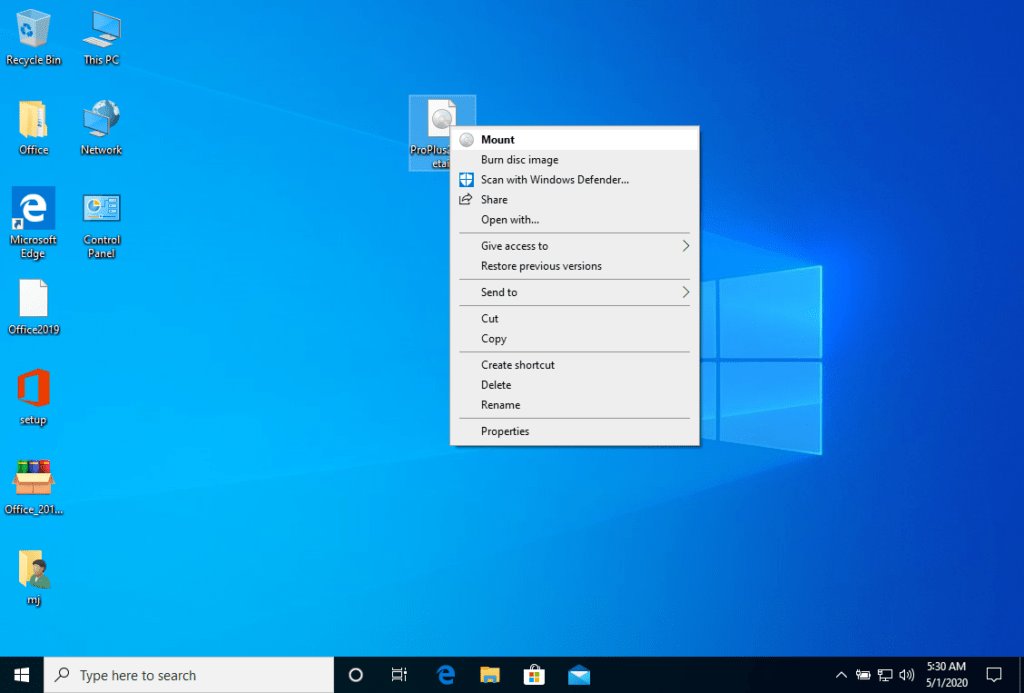
Once the download is complete, right click on the downloaded file and choose the “Mount” option from the dropdown menu


After the ISO file that you downloaded is mounted, you can access it from your Computer as a DVD drive. Here you can run the installer.

Complete the program installation and enter the “activation key” during or at the end of the process.

Once the download is complete and the installation of the program is complete, enter the activation key when running any application from the Microsoft Office package, it will be the first thing that will ask you.
LICENSE AND ACTIVATION

Remember, the key you have purchased is a prepaid code that is not compatible with the pre-installed software. This is an original Microsoft product. Uninstall the previous version of Microsoft Office that you have on your PC and restart your computer. This is important to avoid compatibility problems.

PROGRAM TO ASSEMBLE ISO FILE

  • The mounted image should appear on your Computer. If this does not appear (AS IN WINDOWS 7) you must use an alternative program to mount the product image, such as WinCDEmu which can be downloaded from the following link:

    WinCDEmu

    Use this program to create a virtual disk so that you can install your program

NOTE

  • Microsoft has gradually phased out support for some older products. Therefore, telephone activation is no longer possible. If you have any problems or questions during the Installation, please contact our 24/7 customer service.

Microsoft Visio 2013 Pro

Installation guide Microsoft Visio 2013 Professional 32 & 64 Bits

DOWNLOAD

Download the program with the following download link

LANGUAGE 32 BITS 64 BITS
DEUTSCH Herunterladen Herunterladen
ENGLISH Download Download

SYSTEM REQUIREMENTS

Please make sure your computer meets the minimum system requirements for installing this software:

  • 1 gigahertz (GHz) or faster 32-bit (x86) or 64-bit (x64) processor
  • 1 gigabyte (GB) RAM (32 bit) or 4 GB RAM (64 bit)
  • 4 GB of available hard disk space
  • DirectX 9 graphics device with WDDM 1.0 or higher driver

INSTALLATION

Find the downloaded installer file (it will usually be located in your Downloads folder). Right-click on the file and select “Run as administrator”. You will be asked if you want to let the app make changes to your device. Click on “Yes”.

Important: you need to be online to complete the installation, as the installer will download the needed files directly from Microsoft.

It is recommended that you complete the product installation and activation before signing in with your Microsoft account.

Once the download is complete, right click on the downloaded file and choose the “Mount” option from the dropdown menu


After the ISO file that you downloaded is mounted, you can access it from your Computer as a DVD drive. Here you can run the installer.

Complete the program installation and enter the “activation key” during or at the end of the process.

Once the download is complete and the installation of the program is complete, enter the activation key when running any application from the Microsoft Office package, it will be the first thing that will ask you.
LICENSE AND ACTIVATION

Remember, the key you have purchased is a prepaid code that is not compatible with the pre-installed software. This is an original Microsoft product. Uninstall the previous version of Microsoft Office that you have on your PC and restart your computer. This is important to avoid compatibility problems.

PROGRAM TO ASSEMBLE ISO FILE

The mounted image should appear on your Computer. If this does not appear (AS IN WINDOWS 7) you must use an alternative program to mount the product image, such as WinCDEmu which can be downloaded from the following link:

WinCDEmu

Use this program to create a virtual disk so that you can install your program

NOTE

  • Microsoft has gradually phased out support for some older products. Therefore, telephone activation is no longer possible. If you have any problems or questions during the Installation, please contact our 24/7 customer service.

Microsoft Project 2010 Pro

Installation guide Microsoft Project 2010 Professional 32 & 64 Bits

DOWNLOAD

Download the program with the following download link

LANGUAGE 32 BITS 64 BITS
DEUTSCH Herunterladen Herunterladen
ENGLISH Download Download
 

This ISO file is the basis for the installation of the product.

SYSTEM REQUIREMENTS

Please make sure your computer meets the minimum system requirements for installing this software:

  • 1 gigahertz (GHz) or faster 32-bit (x86) or 64-bit (x64) processor
  • 1 gigabyte (GB) RAM (32 bit) or 4 GB RAM (64 bit)
  • 4 GB of available hard disk space
  • DirectX 9 graphics device with WDDM 1.0 or higher driver

INSTALLATION

MOUNT AND INSTALL

Find the downloaded installer file (it will usually be located in your Downloads folder). Right-click on the file and select “Run as administrator”. You will be asked if you want to let the app make changes to your device. Click on “Yes”.

Important: you need to be online to complete the installation, as the installer will download the needed files directly from Microsoft.

It is recommended that you complete the product installation and activation before signing in with your Microsoft account.

Once the download is complete, right click on the downloaded file and choose the “Mount” option from the dropdown menu


After the ISO file that you downloaded is mounted, you can access it from your Computer as a DVD drive. Here you can run the installer.

Complete the program installation and enter the “activation key” during or at the end of the process.

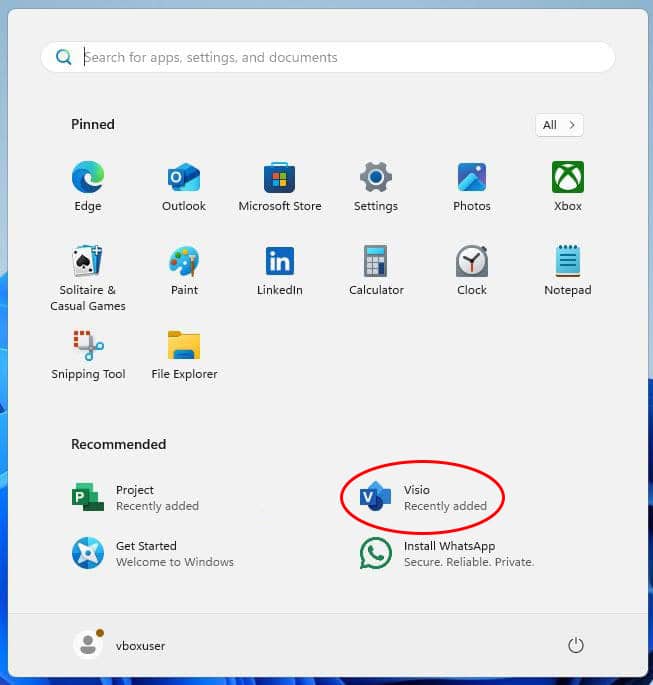
Once the download is complete and the installation of the program is complete, enter the activation key when running any application from the Microsoft Office package, it will be the first thing that will ask you.
LICENSE AND ACTIVATION

Remember, the key you have purchased is a prepaid code that is not compatible with the pre-installed software. This is an original Microsoft product. Uninstall the previous version of Microsoft Office that you have on your PC and restart your computer. This is important to avoid compatibility problems.

PROGRAM TO ASSEMBLE ISO FILE

  • The mounted image should appear on your Computer. If this does not appear (AS IN WINDOWS 7) you must use an alternative program to mount the product image, such as WinCDEmu which can be downloaded from the following link:

    WinCDEmu

    Use this program to create a virtual disk so that you can install your program

NOTE

  • Microsoft has gradually phased out support for some older products. Therefore, telephone activation is no longer possible. If you have any problems or questions during the Installation, please contact our 24/7 customer service.